Unity LevelPlay Mediation is one of InMobi’s top-performing bidding platforms, especially among gaming publishers. This guide explains how to integrate InMobi as a real-time bidder via SDK-based oRTB on Unity LevelPlay Mediation.
Ensure the following before you get started with this integration:
Reach out to your Customer Success Manager to know more about enabling waterfall for InMobi via Custom Adapter on Unity LevelPlay Mediation.
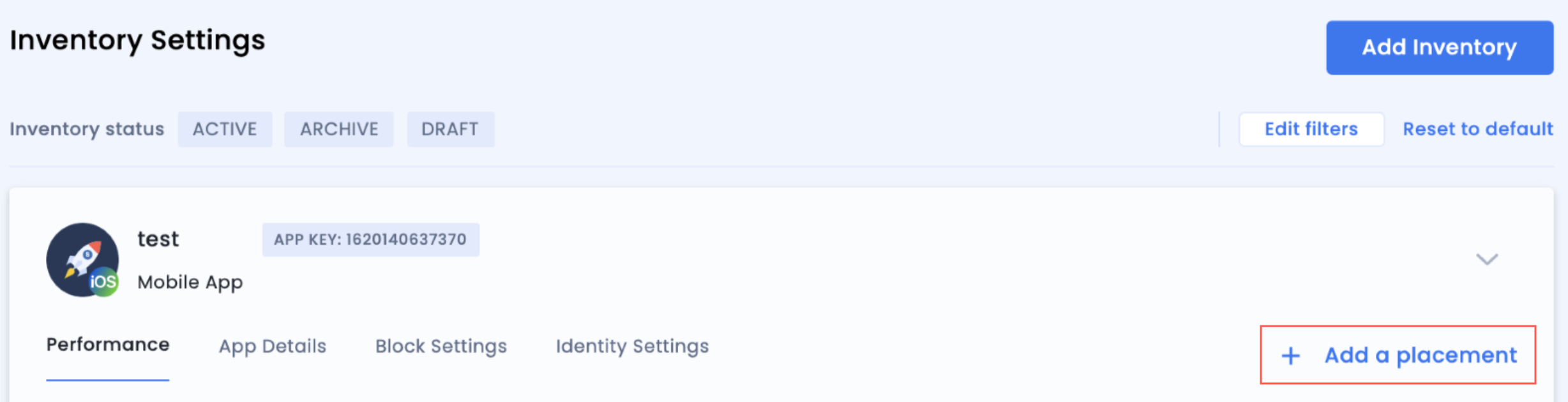
To get your account and inventory up and running on the InMobi Publisher Dashboard, follow the instructions given below:
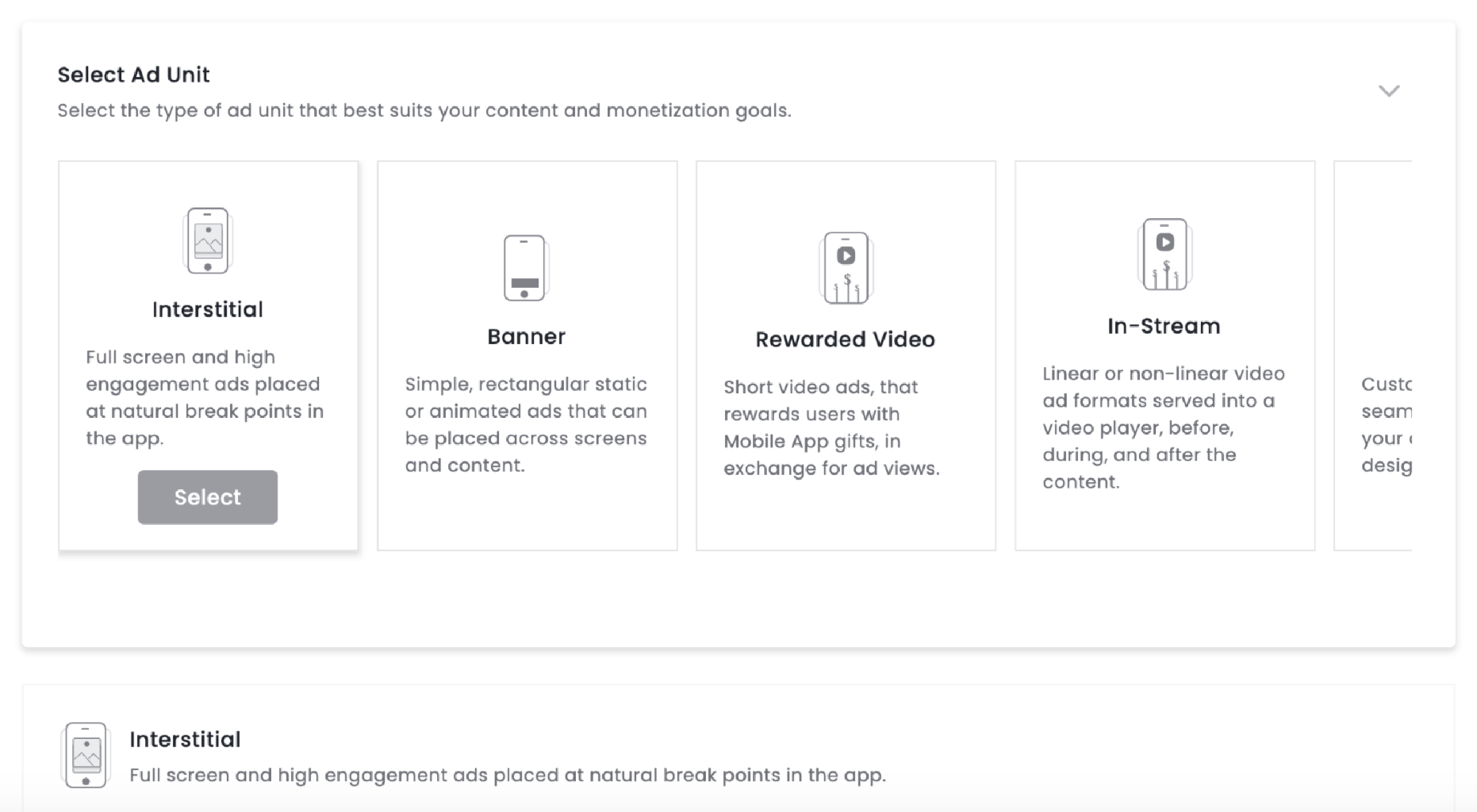
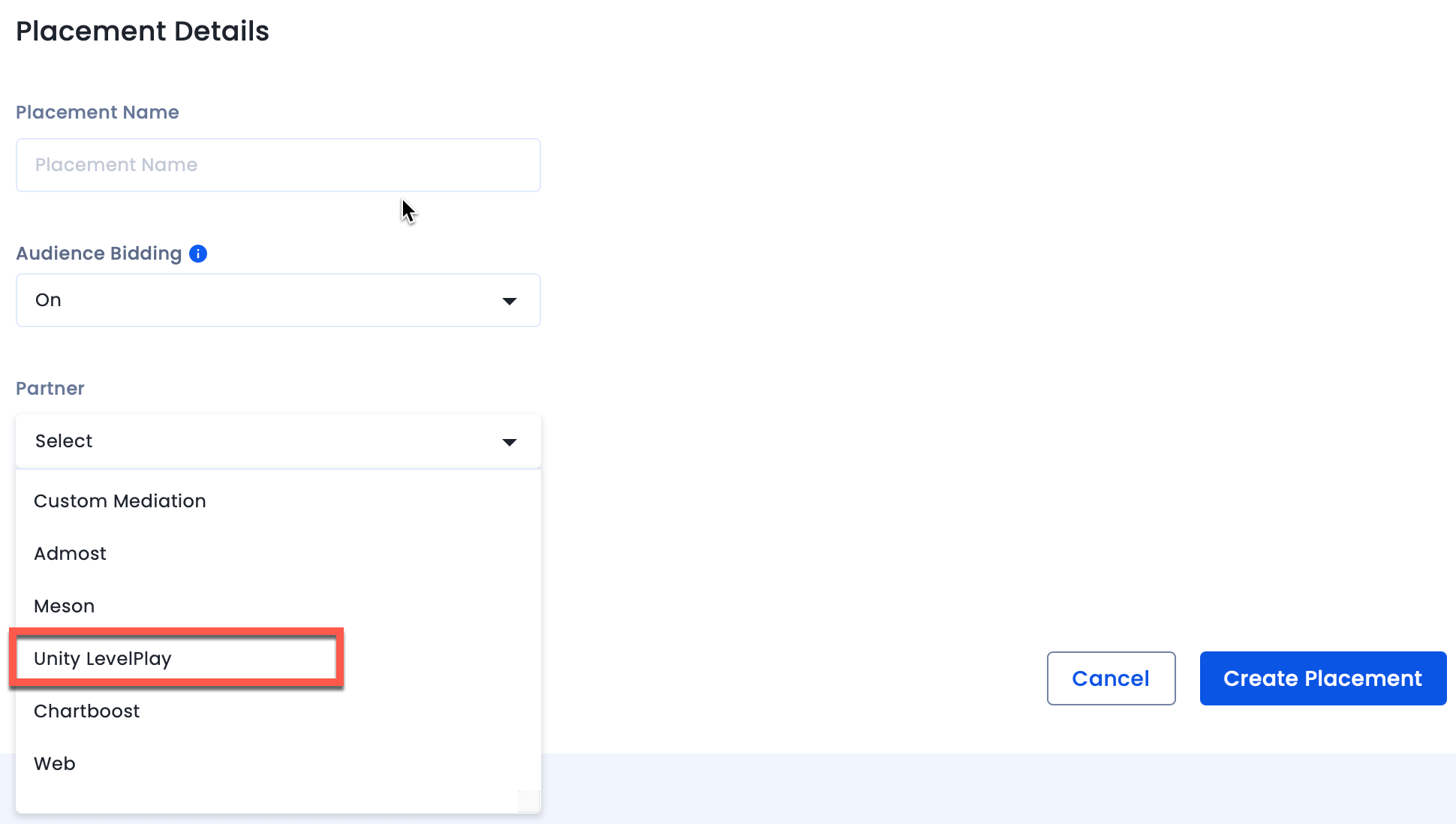
To create placements for Unity LevelPlay:
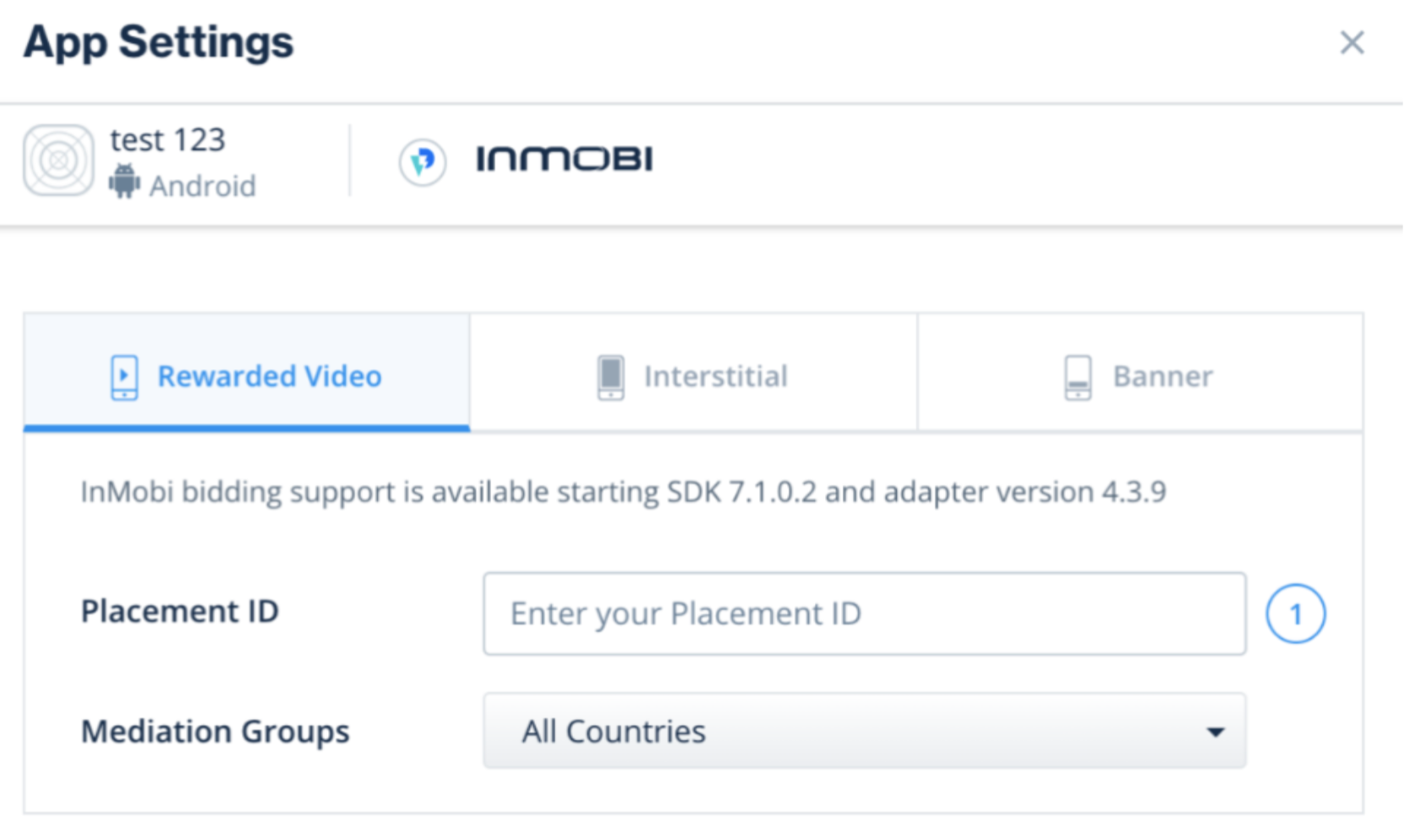
After you are done setting up your account and inventory on InMobi, the next steps would be to add InMobi as a network on the Unity LevelPlay Mediation dashboard, followed by mapping the created placements in the network on the Unity LevelPlay Mediation dashboard. Follow the instructions below:

For any further assistance, Contact Us.
By installing this SDK update, you agree that your Children Privacy Compliance setting remains accurate or that you will update that setting, whenever there is a change in your app's audience. You may update the app's Children Privacy Compliance settings at https://publisher.inmobi.com/my-inventory/app-and-placements.
 Support Center


