SpringServe integration is the process of connecting your CTV inventory with the SpringServe platform, which is a CTV ad server designed to help publishers manage and monetize their video ad inventory.
Before starting the integration, ensure you have:
To set up your account and inventory on the InMobi Publisher Dashboard, follow these steps:
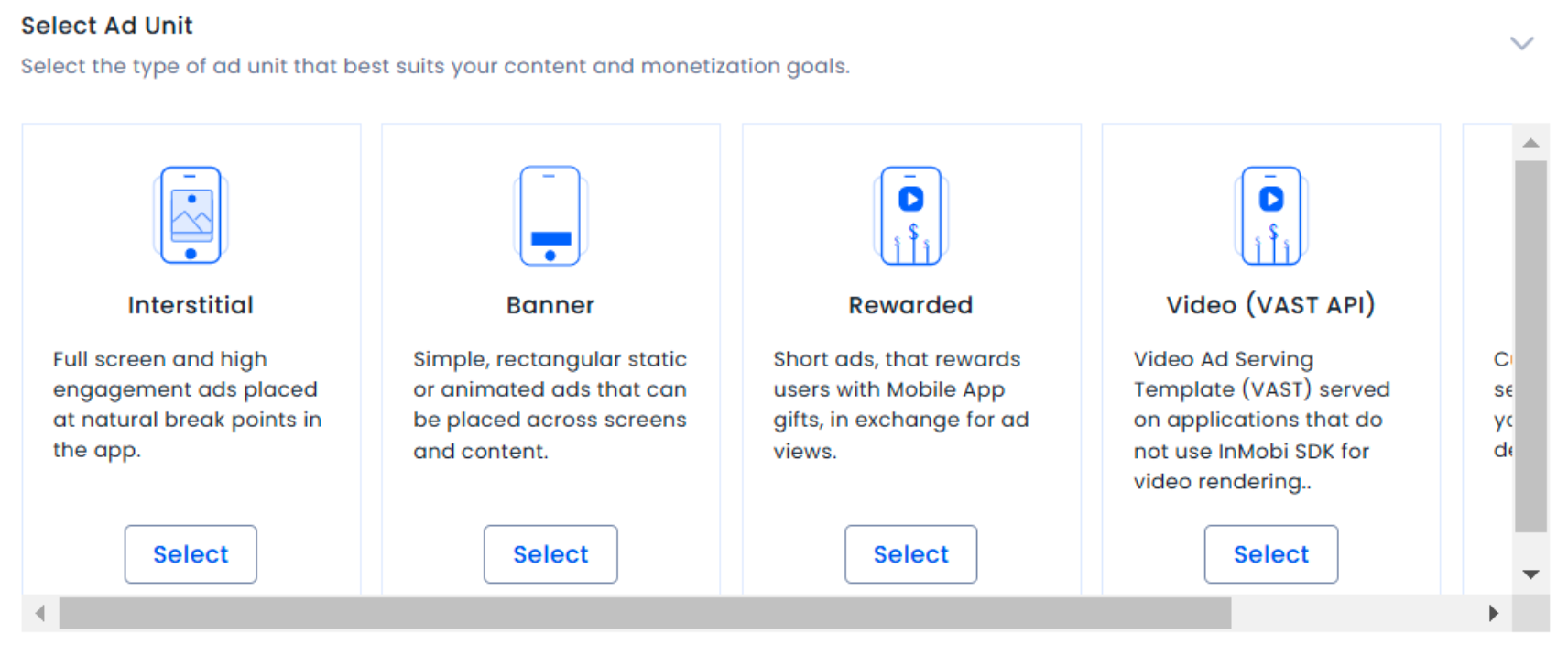
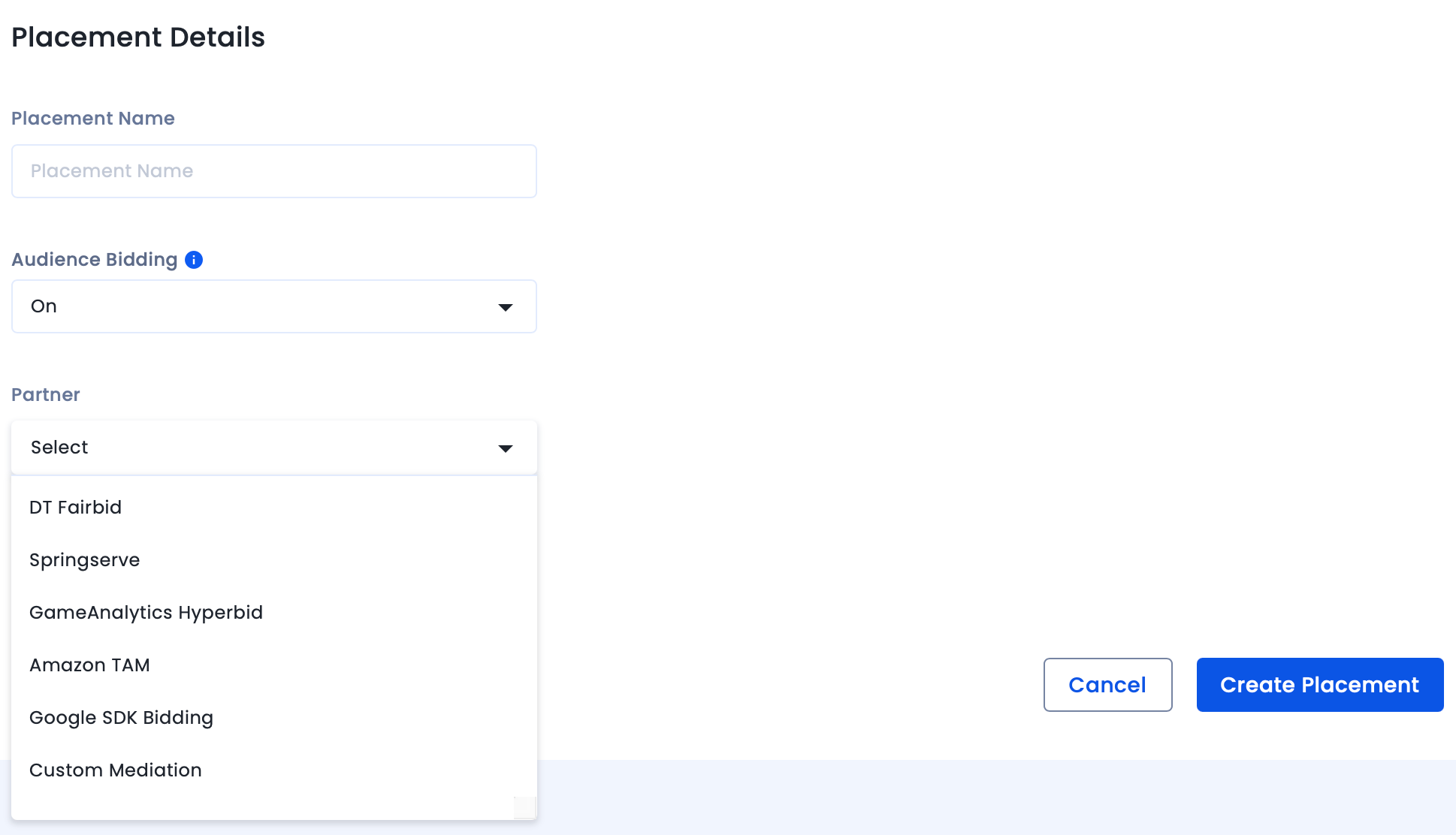
To map the InMobi placements,

Ensure the ad type (e.g., VAST video) and targeting parameters (app/channel name, duration, position) match what’s set on the InMobi dashboard.
For further assistance, Contact Us.
By installing this SDK update, you agree that your Children Privacy Compliance setting remains accurate or that you will update that setting, whenever there is a change in your app's audience. You may update the app's Children Privacy Compliance settings at https://publisher.inmobi.com/my-inventory/app-and-placements.
 Support Center


