Introduction
This guide outlines how to integrate InMobi as a real-time bidder on DT FairBid, Digital Turbine’s mediation platform. InMobi connects via the oRTB protocol and renders Banner, Interstitial, and Video ads using its SDK. Ideal for global in-app publishers across gaming and non-gaming verticals.
Prerequisites
Ensure the following before you get started with this integration:
- An active InMobi account on the InMobi Publisher Platform to access inventory settings, reporting, and account configuration. For more information, see Create InMobi Account.
- An active DT Fairbid account.
- An integration with the DT Fairbid SDK and InMobi SDK and adapter. Download the latest SDK versions here. To integrate the InMobi SDK, follow the instructions on the Supported Networks page.
- Supports in-app inventory.
- Supports waterfall and bidding.
- Ad Formats Supported: Banner, Interstitial, Rewarded Video.
Configure
To get your account and inventory up and running on the InMobi Publisher Dashboard, follow the instructions below:
- Create an InMobi Account or log in to the InMobi Publisher Dashboard.
- If you are adding apps and placements for the first time, see Add Your App or Website.
To create placements for DT FairBid:
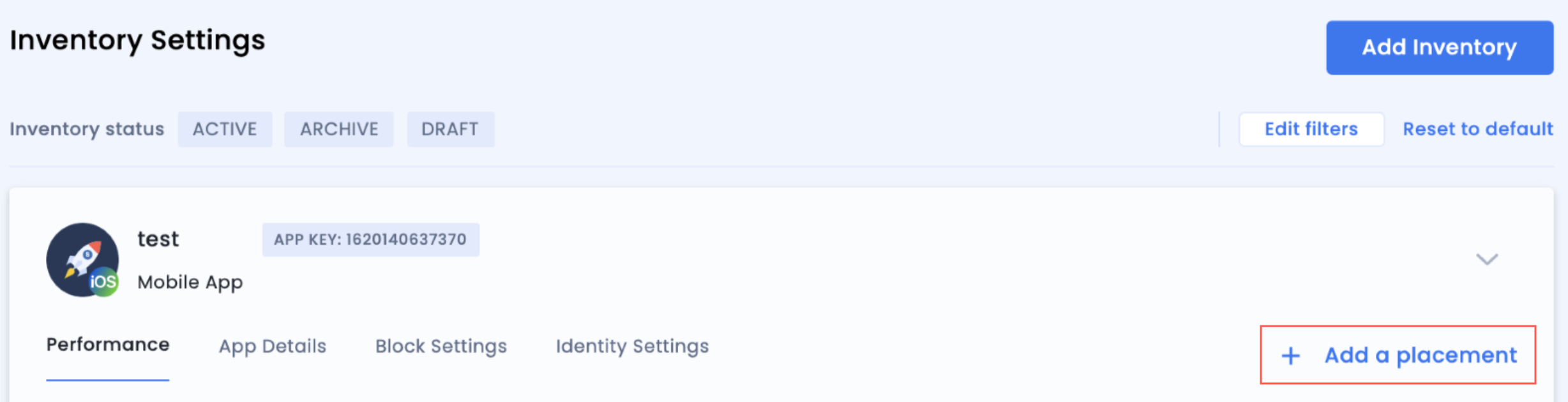
- Search for the app you would like to create a placement for and click + Add a placement.
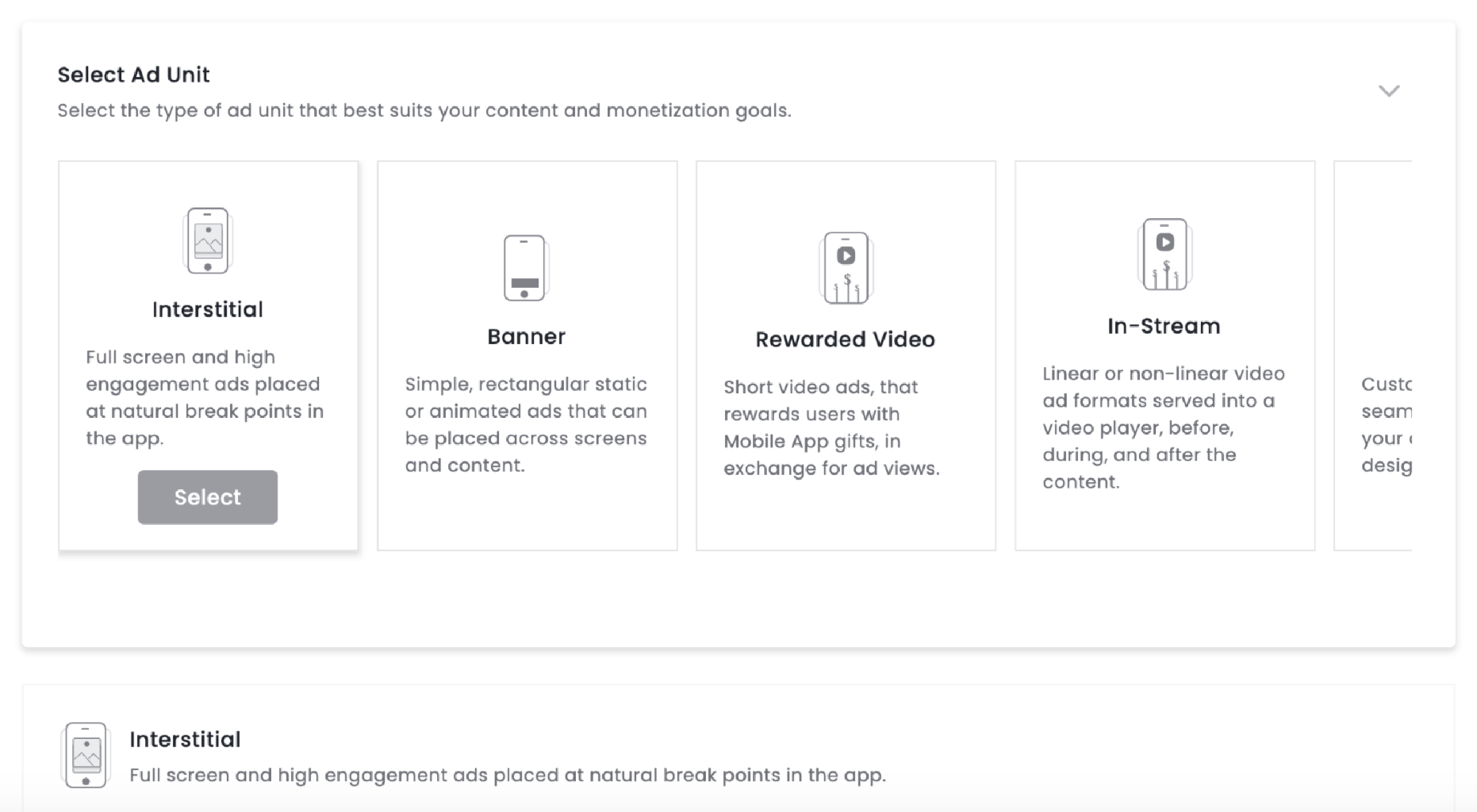
- Select an ad unit. For more information on our ad units, see Ad Units.
- Name your placement. Enable Audience Bidding and select DT Fairbid from the Partner dropdown.
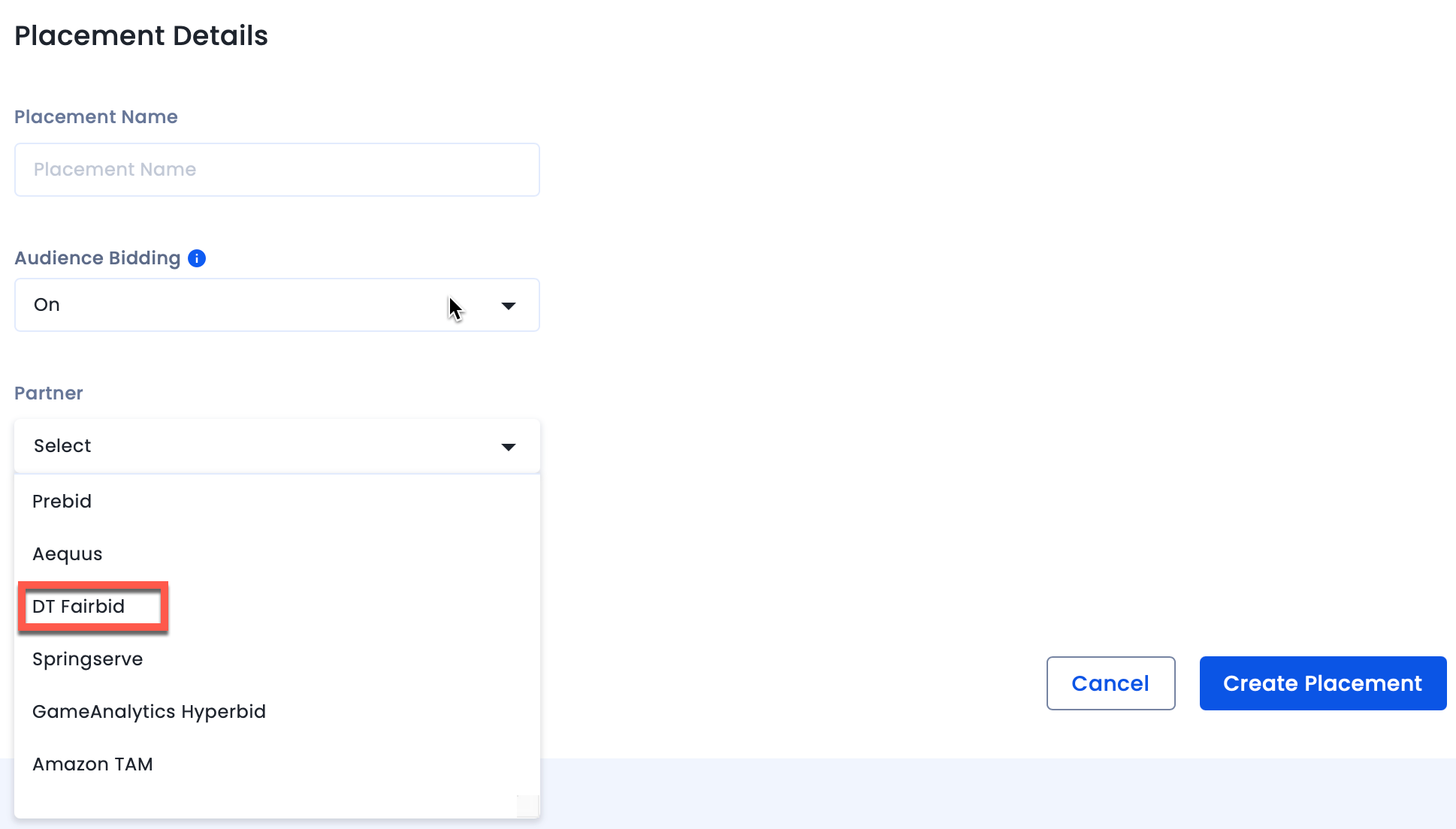
- Click Create Placements.
The InMobi Placement ID is present under the placement name. You will need it while configuring InMobi placements on the DT Console.

Add InMobi As a Mediated Network on DT Console
Before adding InMobi as a mediated network to DT Fairbid, ensure you:
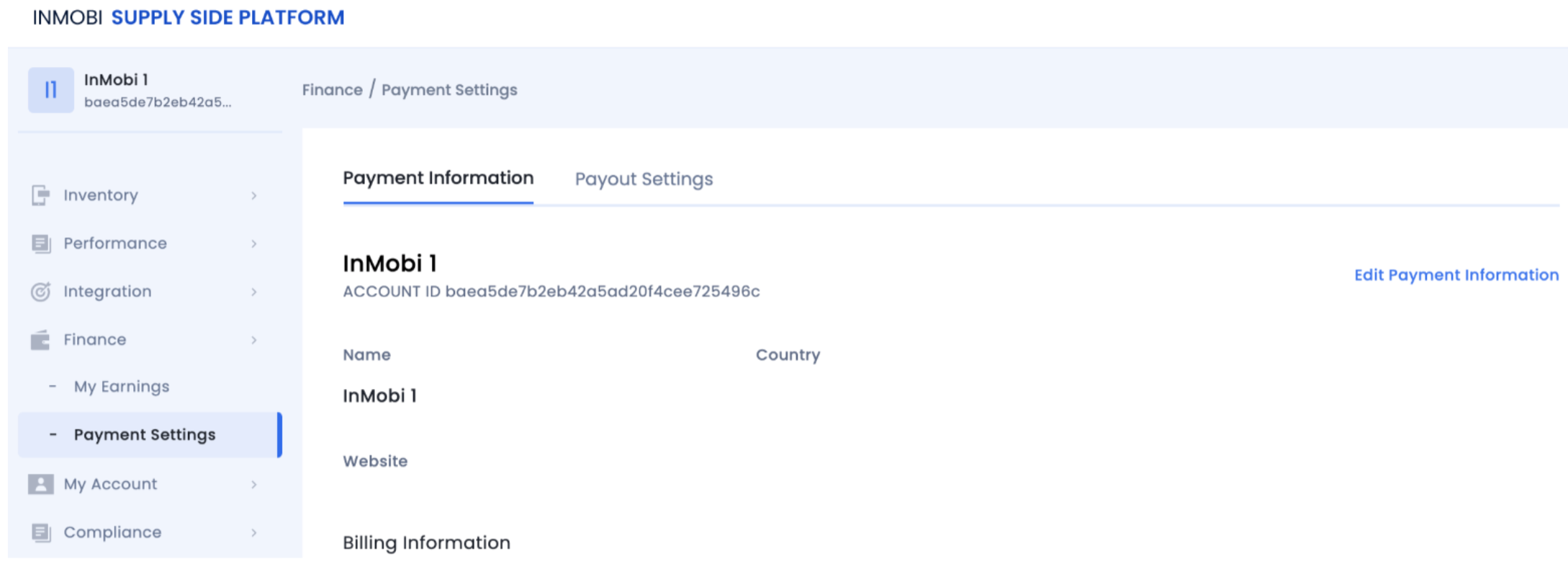
- Retrieve your InMobi Account ID and API key.
- Find your InMobi Account ID on the InMobi Publisher Platform under Finance > Payment Settings > Payment Information.
- To locate your InMobi Reporting API key:
- Go to My Account > Account Settings. Navigate to the API Key tab and click Generate API Key.
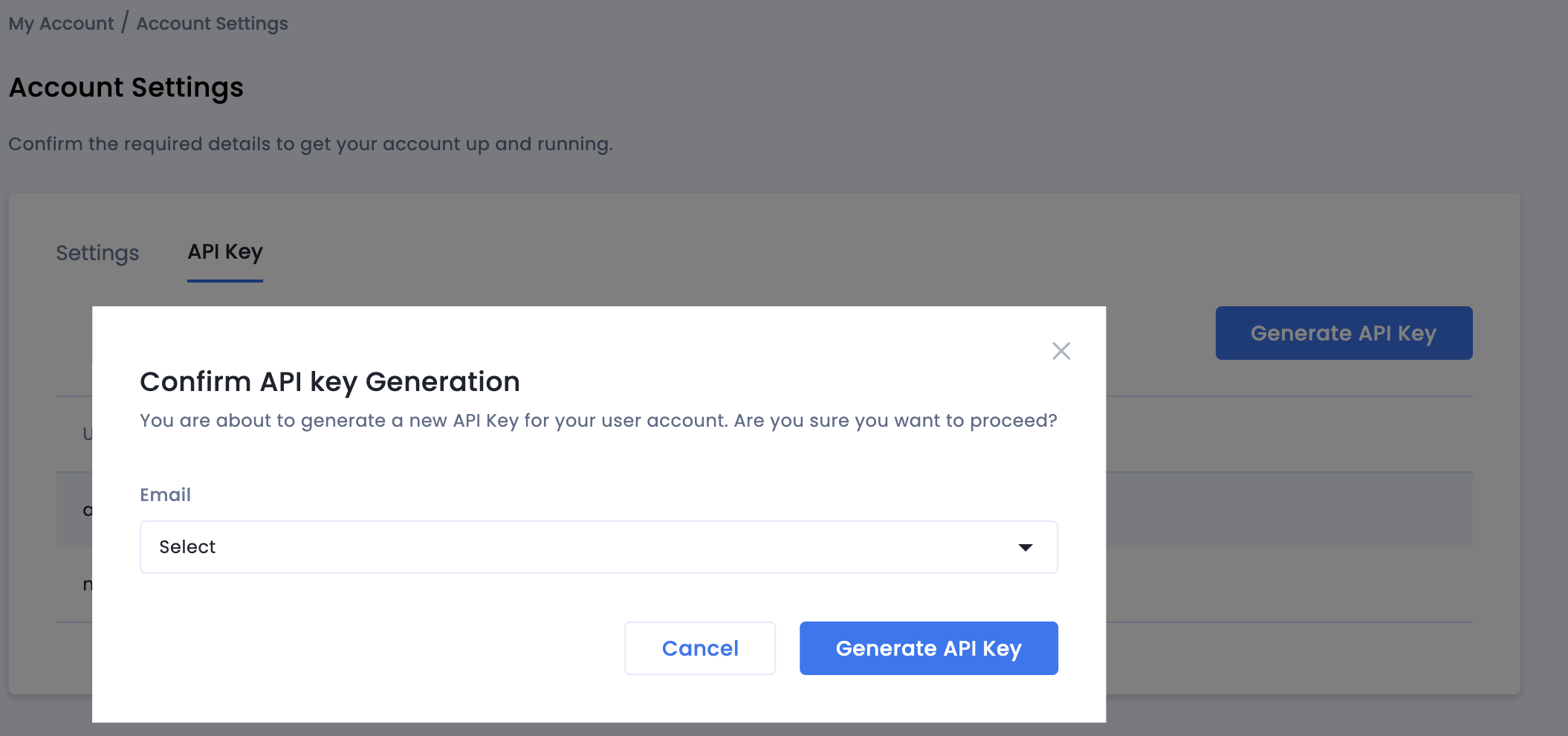
- Select the email of the user that requires the key, and click Generate API Key. A file containing the API key and username/login name will be generated.
- Add your App using the DT Console.
- Set up a DT Placement for each InMobi ad type you want to mediate with DT.
Once done, follow the steps below:
- Log in to the DT Console, and click App Management.
- Set up InMobi or InMobi bidder as a mediated network using your InMobi Account ID and API Key.
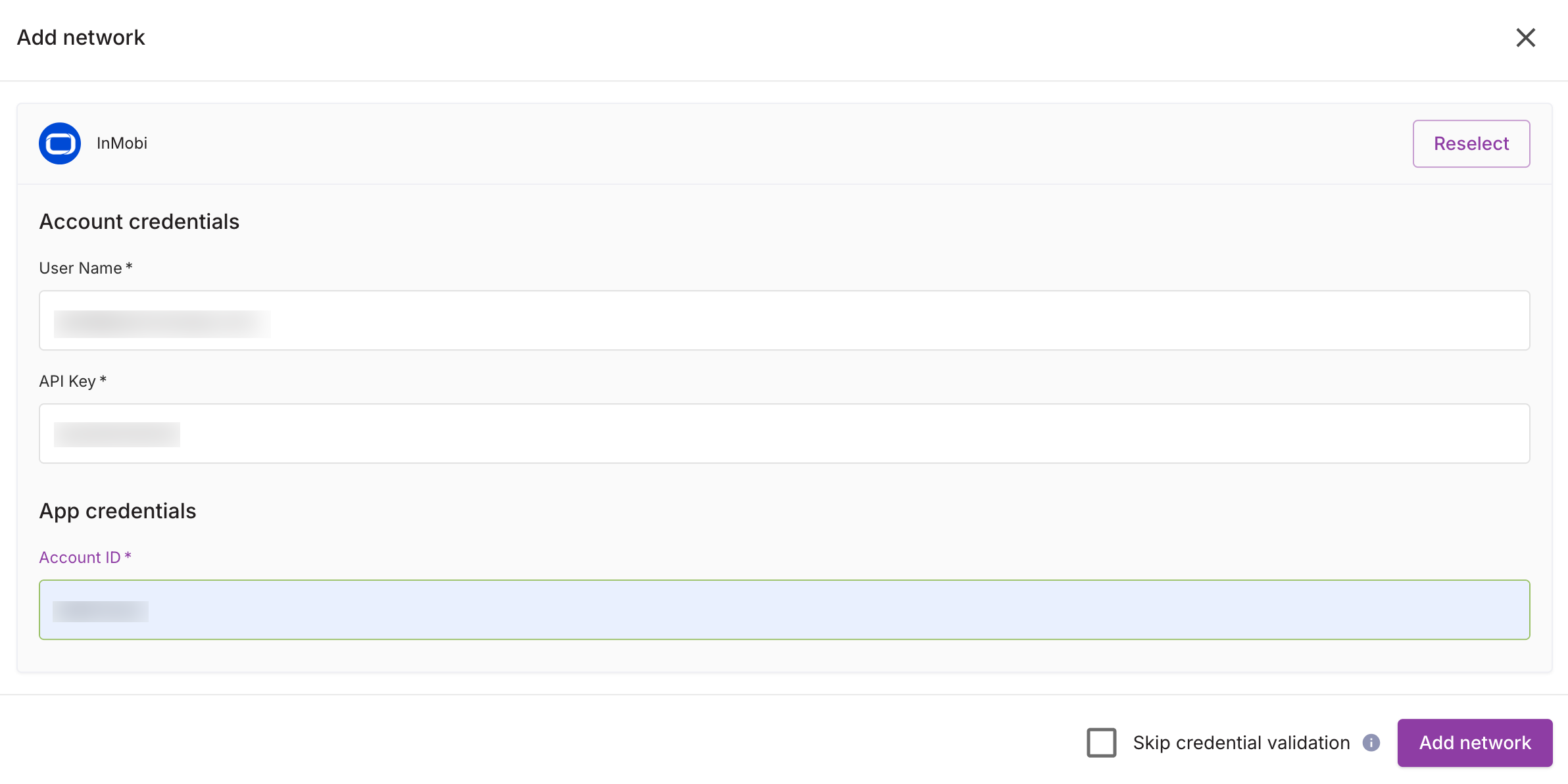
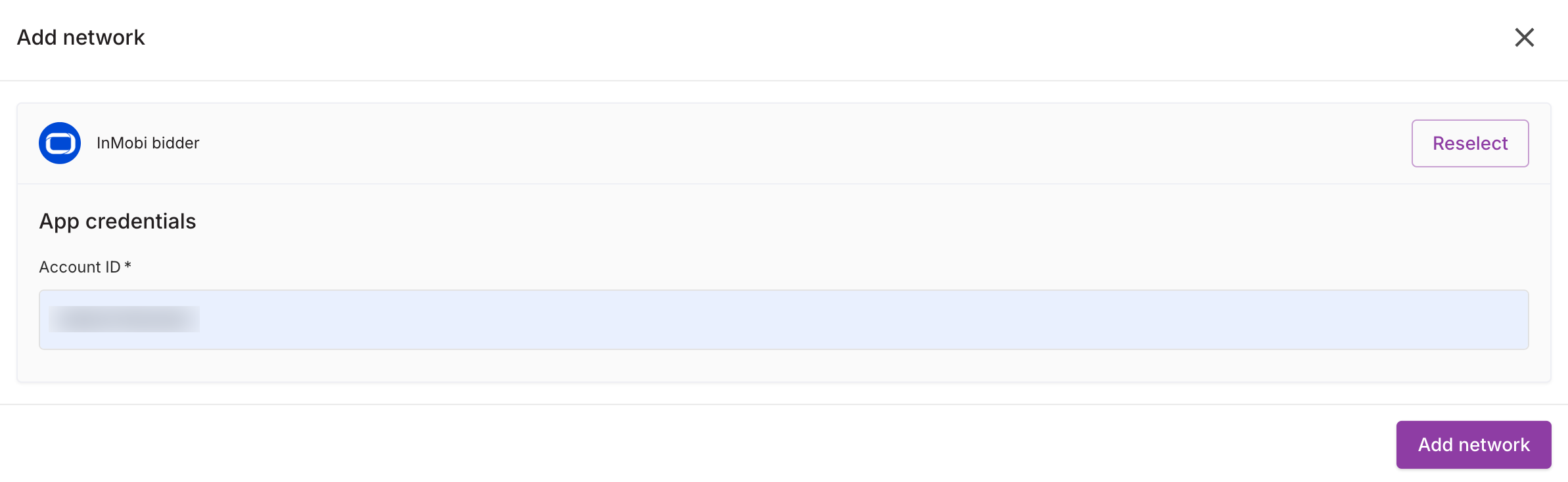
- Set up an ad network instance for each ad type you want to mediate with DT. Use the InMobi Placement ID for the Instance ID.
For further assistance, Contact Us.
 Support Center


