Introduction
InMobi is available as a bidder on Amazon Publisher Services (APS) through Transparent Ad Marketplace (TAM) and Unified Ad Marketplace (UAM). This server-side integration uses the OpenRTB protocol and does not require SDK implementation. This setup enables seamless access to InMobi’s demand, offering an efficient, API-based monetization path for both mobile web and in-app inventory.
Requirements
To successfully integrate InMobi with APS, ensure you meet the following prerequisites:
- InMobi Account: You must have an active account on the InMobi Publisher Dashboard to access inventory settings, reporting, and account configuration. For more information, see Create InMobi Account.
- APS Account: You must have an active account on APS, either for in-app or web monetization.
- Inventory Setup: Create ad placements in your InMobi Publisher Dashboard. The following environments are supported:
- Supported Ad Formats
- Mobile (In-App): Banner, Interstitial, Video (all formats), Native.
- Web: Banner, In-stream Video, Native.
Configure InMobi Dashboard
Use the toggle below to view the differences in dashboard configuration across platforms.
Mobile
- Log in to the InMobi Publisher Dashboard.
- Navigate to Inventory > Add Placement.
- Select App, and input your app store details.
- Set Child Compliance and Block Settings as needed.
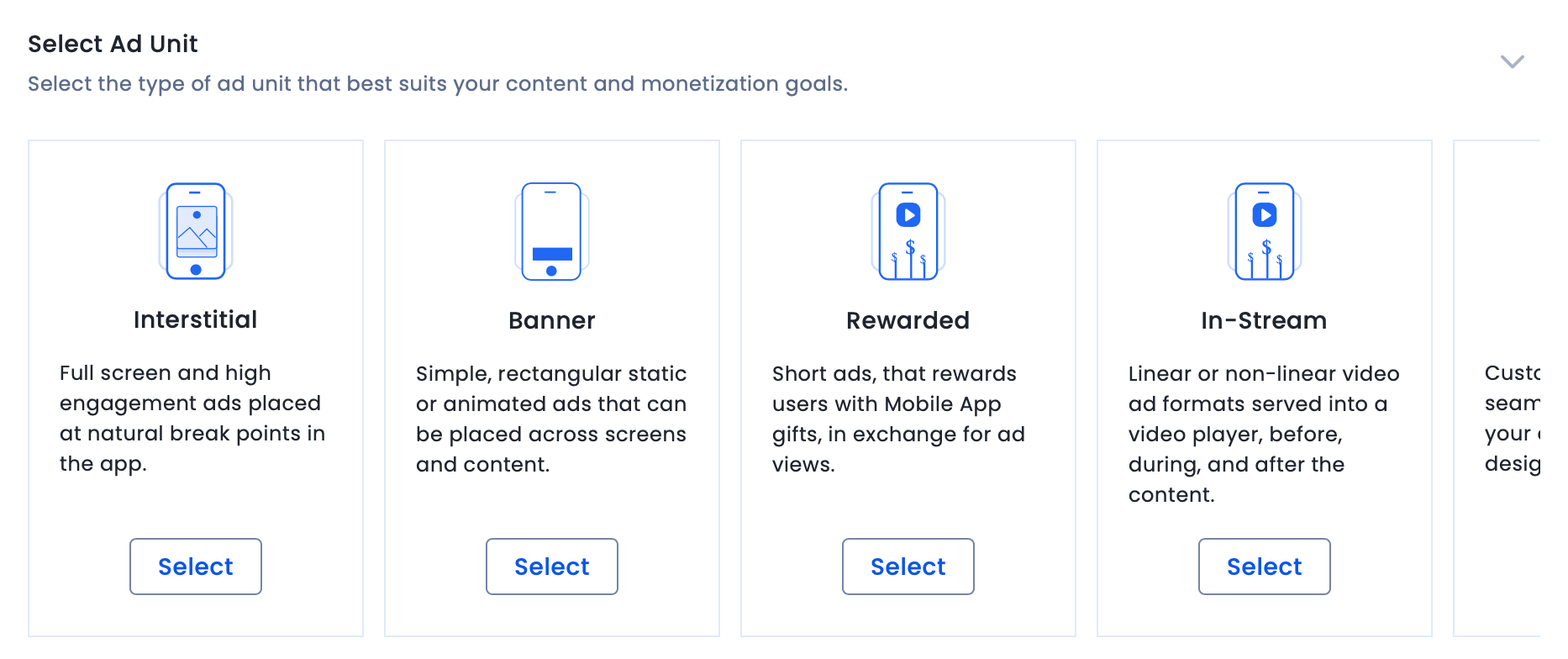
- Select the ad format.
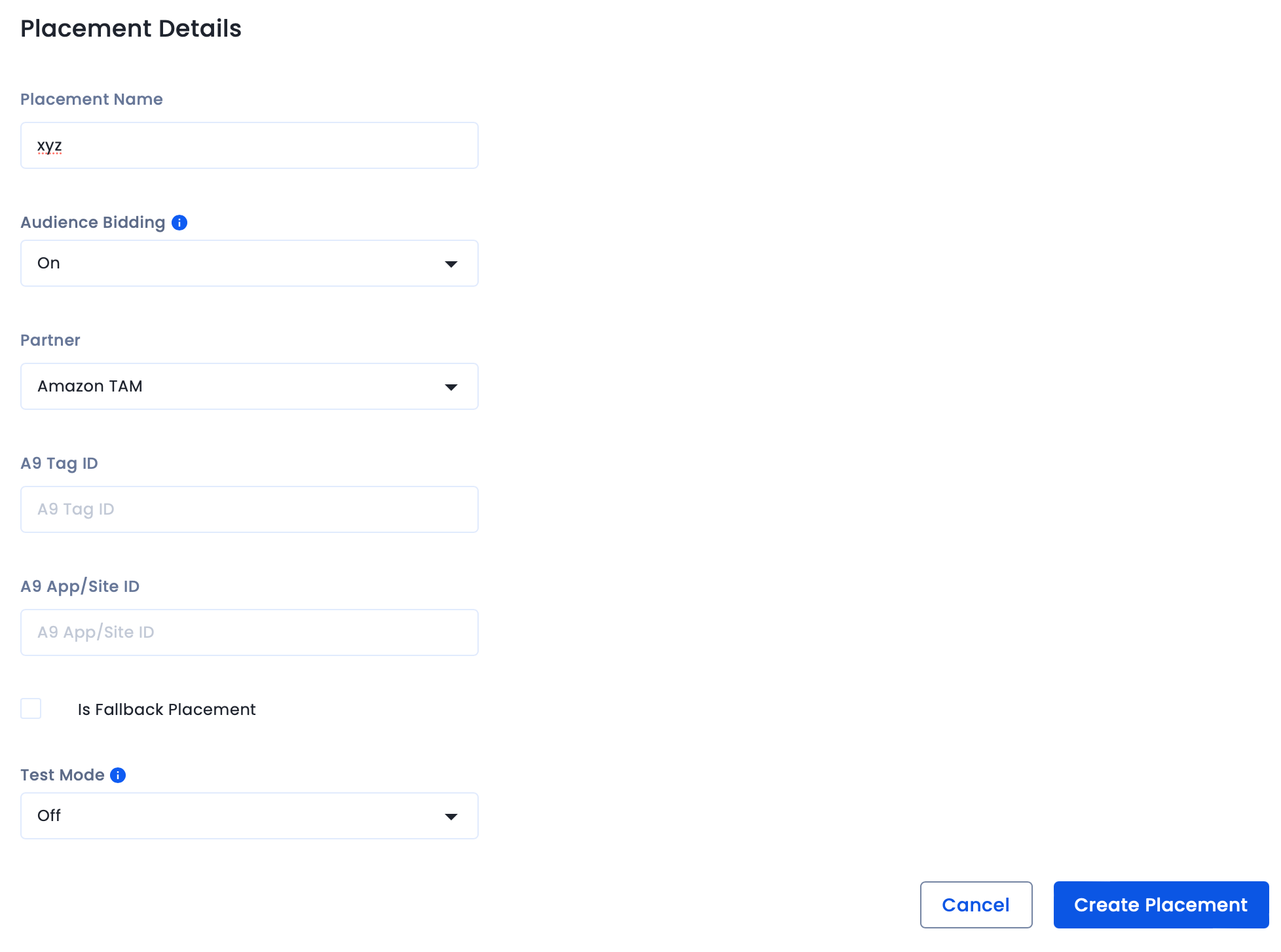
- Create a new placement. Select Amazon TAM as a partner and switch on Audience Bidding. Enter the Tag ID and App ID from APS, in the respective fields.
- Save the placement.
Web
- Log in to the InMobi Publisher Dashboard.
- Go to Inventory > Add Placement.
- Select Website, and enter your domain details.
- Configure Child Compliance and Block Settings.
- Define ad units and supported formats.
- Create a new placement. Select Amazon TAM as a partner and switch on Audience Bidding. Select the “Is Fallback Placement” checkbox to create fallback placements as there is no TAG ID for web placements.
- Save the placement.
Integrate with Amazon Publisher Services
Use the toggles below to view platform-specific integration instructions.
Note
For Mobile only:
- Create only in-stream placements for any video ad type, including Interstitial and Rewarded Video. Creating placements with Interstitial/Rewarded Video ad units will only work for static ads.
- Every placement needs to have a unique TAG ID/Ad Slot Name. Do not create multiple placements with the same TAG ID/Ad Slot Name.
- Any APS requests hitting InMobi will come with the App ID and Tag ID/Ad Slot Name, based on which we identify the corresponding InMobi Placement ID.
Mobile
- Send connection request: Initiate a connection request with InMobi on the APS Dashboard or request your APS account manager to set the connection to "In-Progress". The request will appear on InMobi’s APS Partner Dashboard under Supply > Publishers > In-Progress.
- Find App ID and Tag ID: For each placement, obtain the Tag ID/Ad Slot Name and App ID from your APS account.
- Go to Supply > In-Progress > Select the Publisher’s page > 4. Slot mapping > Download slot mapping. The downloaded file will contain Ad Slot Name, which is equal to TAG ID, and app ID/site ID, which is equal to app ID/site ID.
- Map each Tag ID and App ID to the corresponding InMobi Placement ID and App ID. These IDs ensure correct request routing between APS and InMobi.
- Update Account ID and ads.txt ID: Reach out to your InMobi Business Development Manager/Amazon Account Manager, or follow the steps below:
- Under Step 1. Account Number and Ads.txt, click Edit and enter the Publisher ID and ads.txt ID.
- You can find your InMobi details as shown below:
- Account number = InMobi’s Account ID. You can find it in the top left corner under your Account's name.
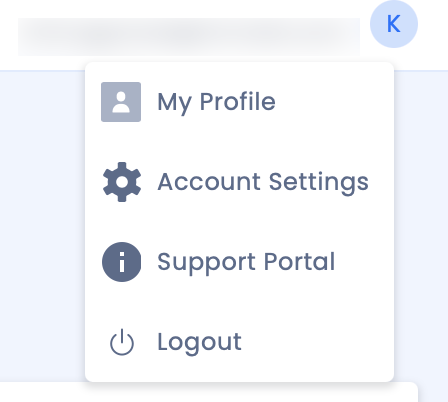
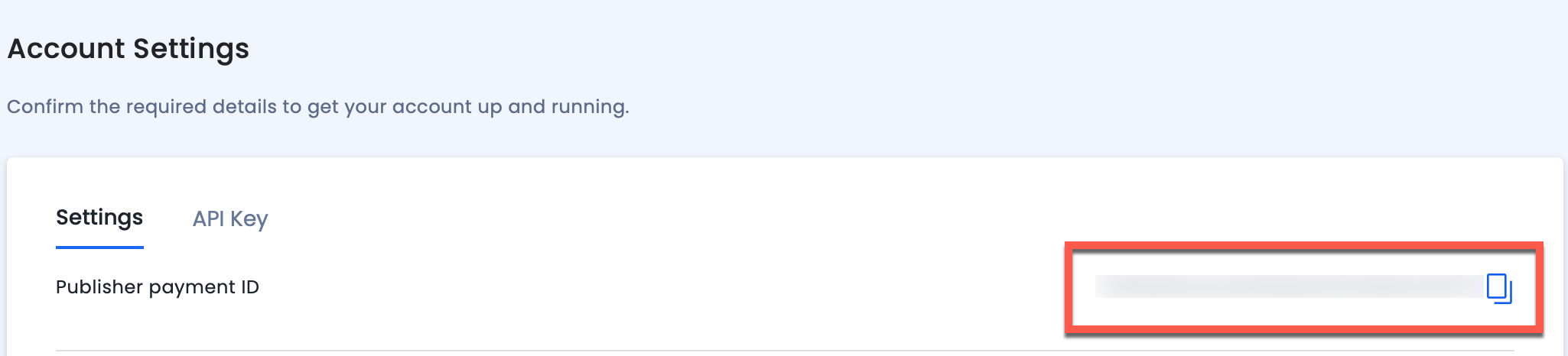
- Ads.txt ID = InMobi Seller ID / Payment ID. You can find it in the Accounts Settings subtab under your email.
- Once the account is mapped and you are ready to go live, click Ready to Enable.
- Go to Supply Selection > Pending Review under Apps and Sites to approve new apps and sites.
Create Fallback Placement
Use fallback placements only for apps that have multiple placements.
- Create an Audience Bidding placement for Amazon TAM as shown in Configure InMobi Dashboard.
- Checking the box Is Fallback placement to create a fallback placement. Create only one fallback placement per app per placement type. A fallback placement doesn’t require a Tag ID.
Web
- Create one fallback placement per ad format (e.g., one for banner, one for in-stream video). InMobi will match incoming requests to these fallback placements.
- No Tag ID is required for mobile web TAM traffic.
- Ensure InMobi is enabled in your APS dashboard to begin traffic delivery.
For further assistance, Contact Us.
 Support Center


