Introduction
Integrate InMobi with Google SDK Bidding on Google Ad Manager using a direct supply path for better signal collection and ad rendering. This setup supports Banner, Interstitial, Native, and Rewarded Video formats across gaming and non-gaming apps. It enables hybrid monetization without custom adapters or changes to your existing waterfall.
Prerequisites
Ensure you have the following before you begin the integration:
- An InMobi account
- An active Google Ad Manager account
- Signed contract with InMobi
- Integration with InMobi adapters and SDK. We recommend using the latest versions. Download for Android and iOS
- Formats supported: Banner, Interstitial, Native, and Rewarded Video
- Supports in-app inventory
- Supports both waterfall and bidding
- For non-SDK integration, see Google Open Bidding
Note
Google manages payment and billing for SDK Bidding on Ad Manager. For payment, billing, or reporting information, please refer to the Google dashboard.
Configure InMobi
Bidding
To set up your account and inventory on the InMobi Publisher Dashboard, follow these steps.
- Sign up or log in to your InMobi Supply Side Platform account.
- Add your apps by following the steps outlined in Add inventory.
- Create new placements as follows:
- Search for the app you want to create a placement for and click + Add a placement.
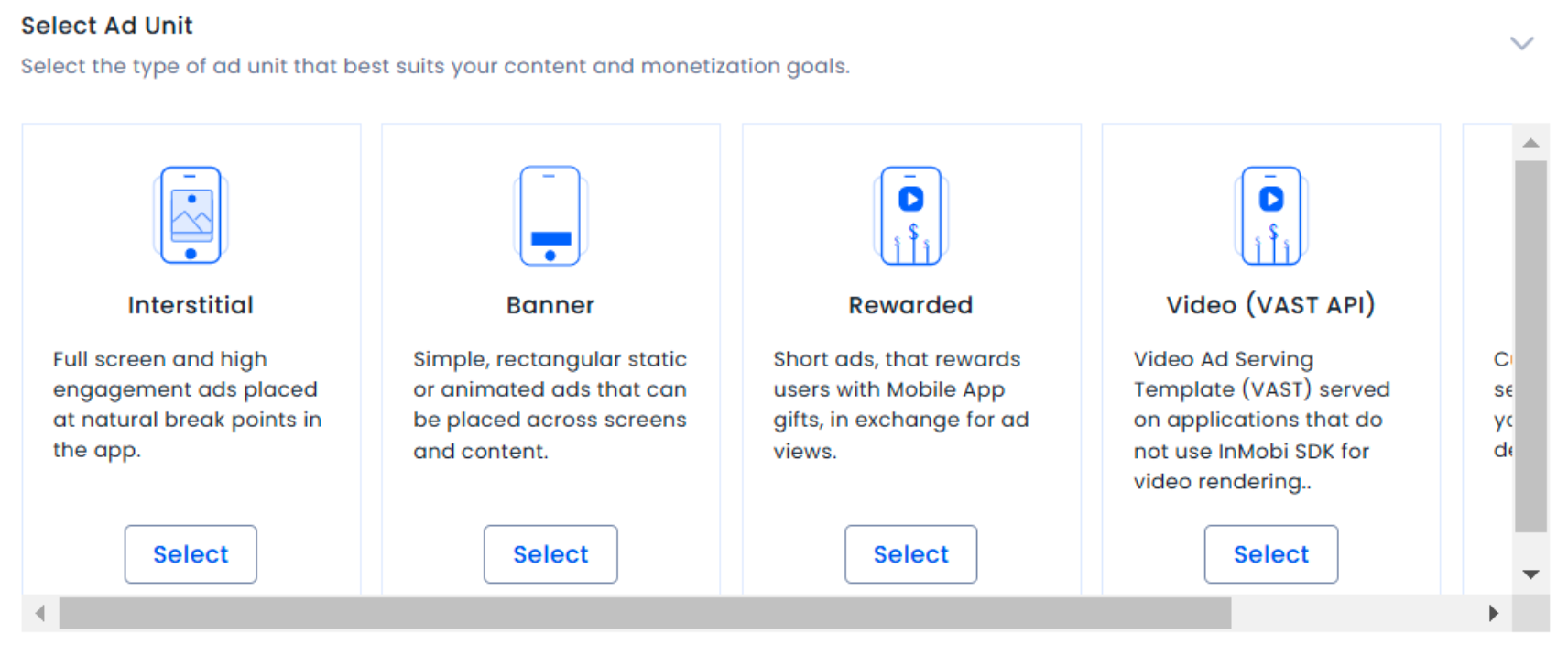
- Select an ad unit.
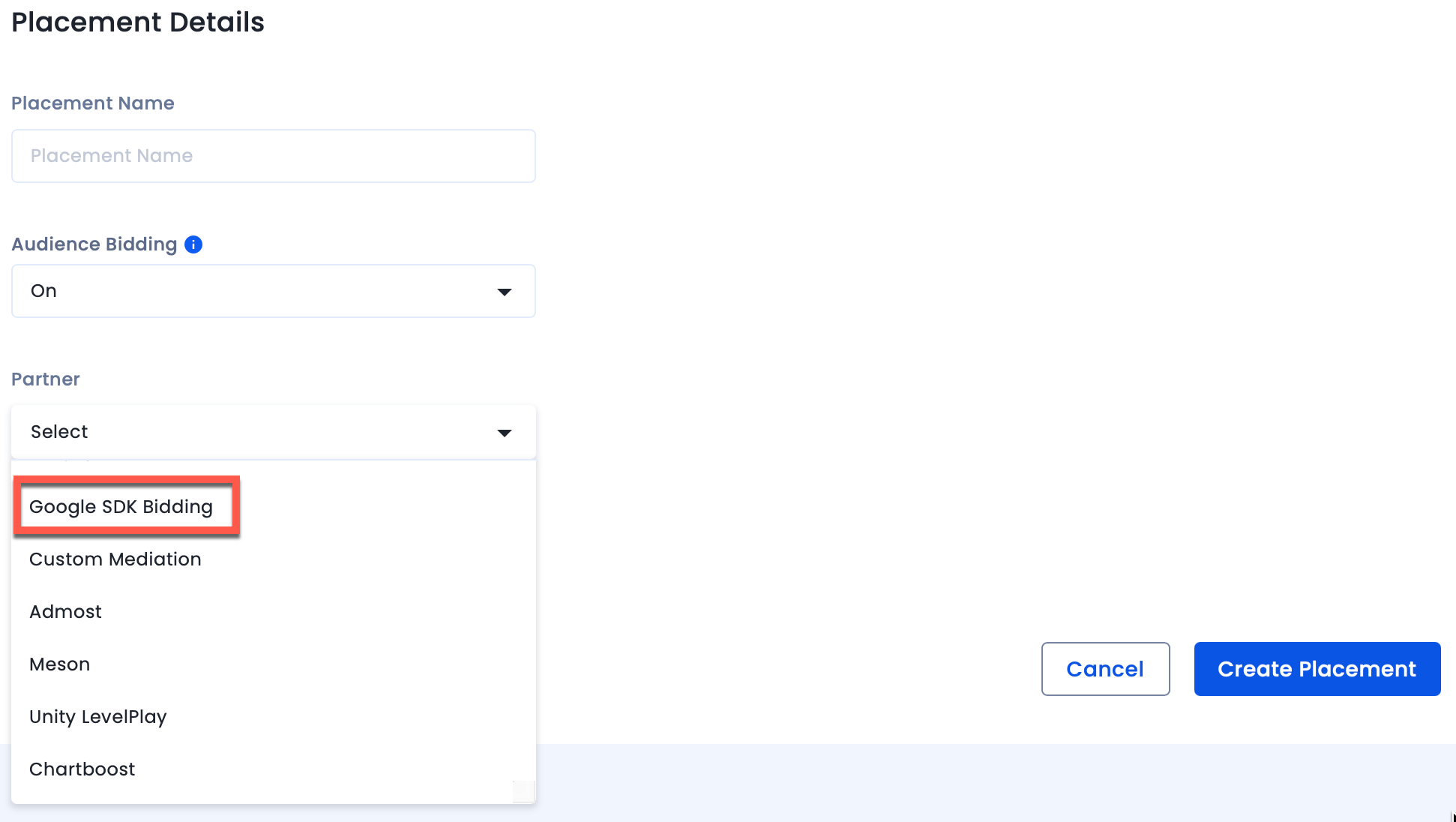
- Name your placement and enable Audience Bidding. Select Google SDK Bidding from the Partner dropdown. Click Create Placements.
Waterfall
To set up your account and inventory on the InMobi Publisher Dashboard, follow these steps.
- Sign up or log in to your InMobi Supply Side Platform account.
- Add your apps by following the steps outlined in Add inventory.
- Create new placements as follows:
- Search for the app you want to create a placement for and click + Add a placement.
- Select an ad unit.
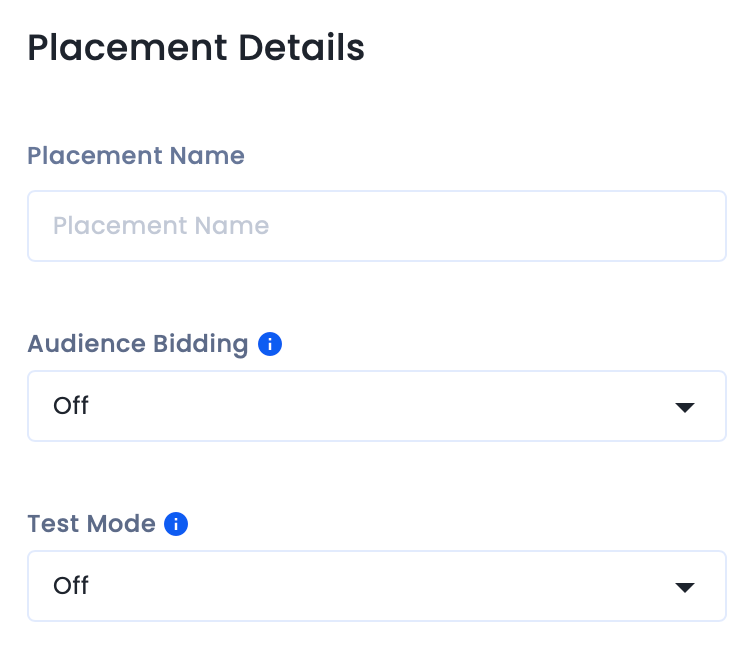
- Name your placement and select Off for Audience Bidding. Click Create Placements.
Add InMobi as a Bidder on Google Ad Manager
Bidding
- Navigate to Delivery > Bidders > SDK Bidding.
- Review and accept the SDK Bidding terms.
- Configure InMobi as an SDK Bidding bidder.
- Activate all secure signals to share with InMobi. This is mandatory as ad requests will fail if secure signals are not enabled. For more information, see Share secure signals with bidders.
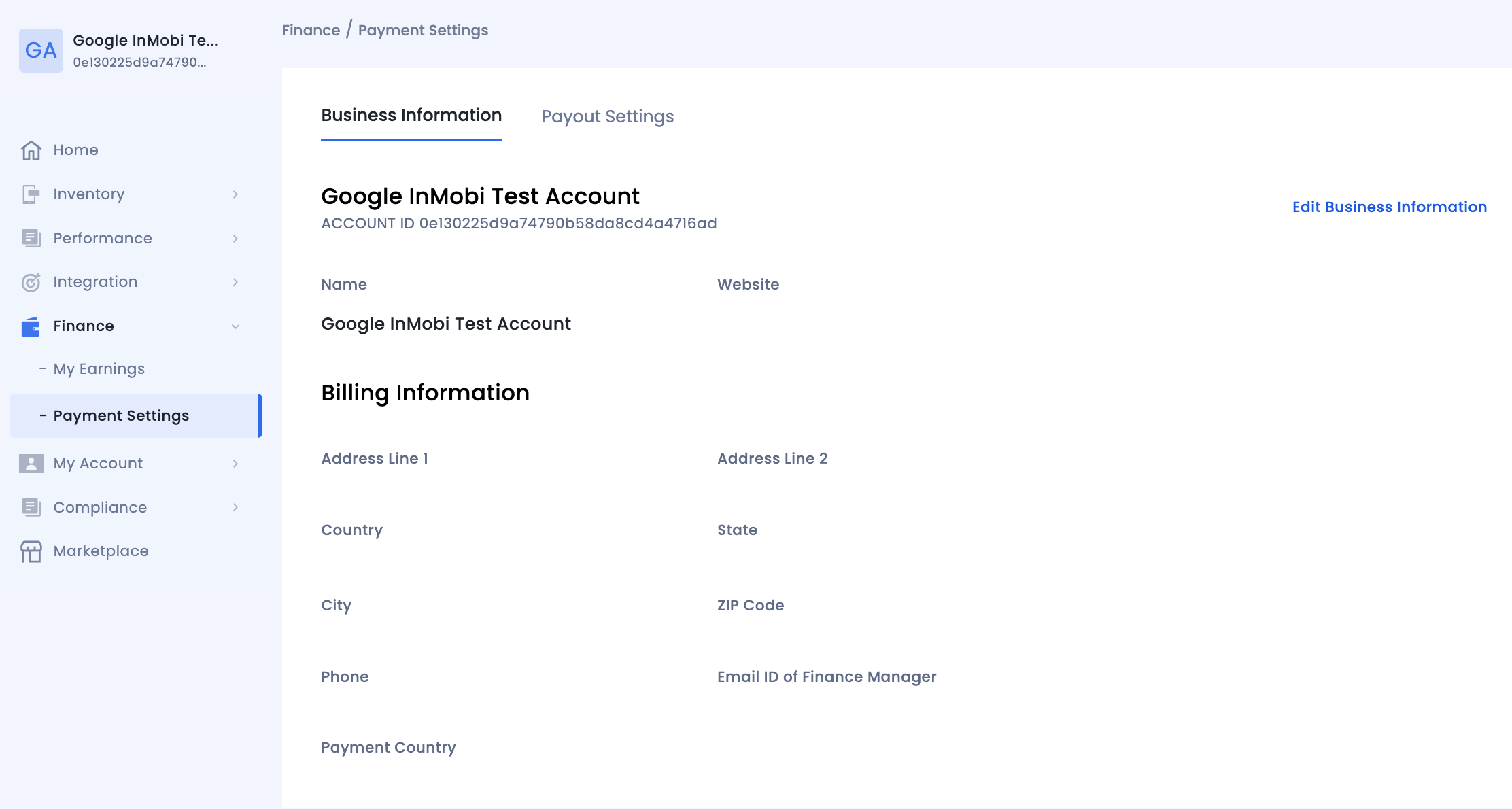
- Use the corresponding InMobi Account ID and Placement ID to complete ad unit mapping.
- Your InMobi Account ID is available under Finance > Payment Settings > Business Information.
- Find the InMobi Placement ID under the placement name.

Waterfall
- Navigate to Admin > Companies, click New company in the All companies tab. Select Ad network.
- Select InMobi as the Ad network, enter a unique Name and enable Mediation.
- Turn on Automatic data collection, and enter the Username and API Key.
- To locate your InMobi Reporting API key:
- Go to My Account > Account Settings. Navigate to the API Key tab and click Generate API Key.
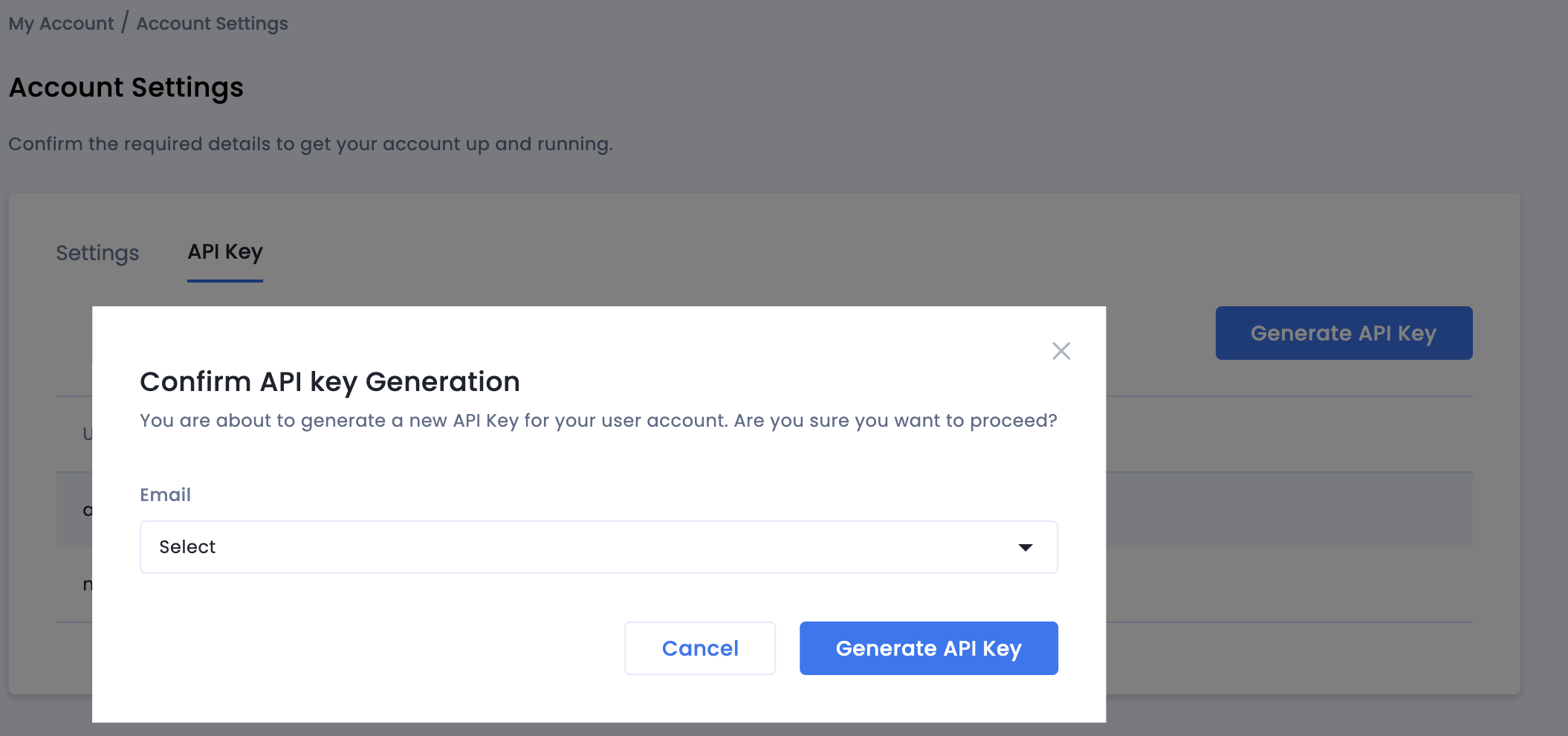
- Select the email of the user the key is required for and click Generate API Key. A file containing the API key and username/login name will be generated.
- Next, enter your Username and click Save when done.
Configure Ad Unit Mapping
- Navigate to Delivery > Yield groups and click New yield group. Select your Mobile application.
- Scroll down and click Add yield partner.
- Select the Company you created for InMobi. Choose Mobile SDK mediation as the Integration type, Android/iOS as the Platform, and Active as the Status.
- Enter your InMobi Account ID and Placement ID, and the Default CPM value. Click Save.
- Your InMobi Account ID is available under Finance > Payment Settings > Business Information.
- Find the InMobi Placement ID under the placement name.
Test Your Integration
Once you have completed your setup on Google Ad Manager, we recommend you test your integration to ensure seamless functioning.
To test your integration, see Verify your SDK Bidding setup.
To verify your SDK bidding setup, see Verify your SDK Bidding setup.
For Google Ad Manager docs, see Integrate InMobi with mediation for iOS and Android.
Import InMobi SDK and Adapter
After setting up InMobi on the SSP and adding it as a bidder in GAM, import the InMobi SDK and adapter.
Additional Instructions for GDPR
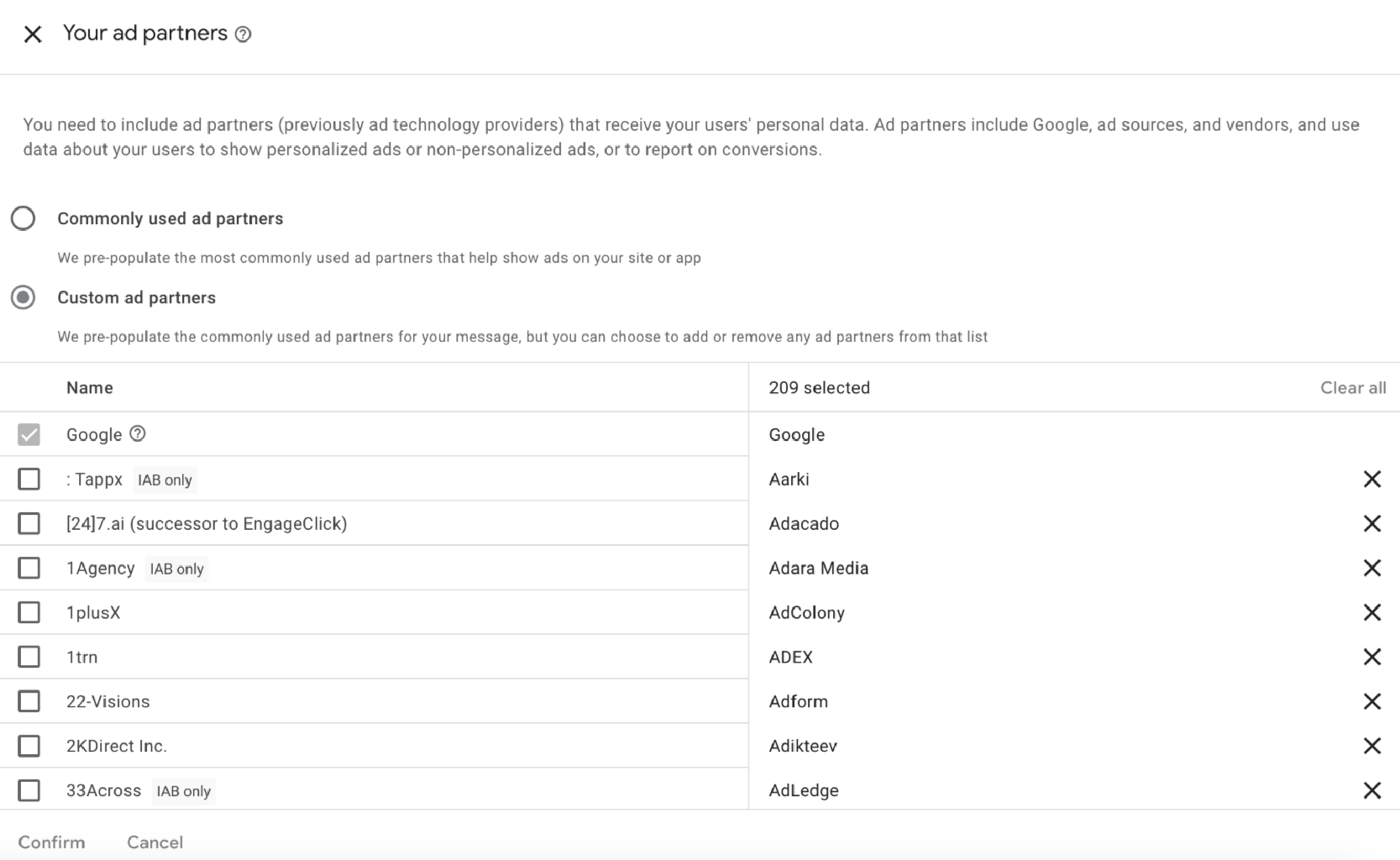
Follow the additional instructions below about GDPR settings on your Google dashboard for higher monetization results. The following configuration applies to traffic from European Economic Area and publishers using AdMob/GAM CMP for GDPR consent purposes. Google CMP provides two ways of adding ad partners on their AdMob/GAM platform:
- Commonly used ad partners
- Custom ad partners
InMobi is not part of ‘Commonly used ad partners’ by default, and you must add it manually by selecting Custom ad partners.
Follow the instructions below to enable InMobi under Custom ad partners on your Google dashboard.
- On the Google Dashboard, select Privacy & messaging GDPR Settings Review your ad partners.
- Select Custom ad partners and then InMobi from the list and save the settings.
For further assistance, Contact Us.
 Support Center


