Pangle is an in-app mediation platform that enables publishers to monetize their inventory through real-time bidding and SDK-based integrations. This guide explains how to integrate InMobi with Pangle for Android and iOS applications using the InMobi SDK.
This integration supports global in-app inventory and key ad formats, including Banner, Interstitial, Native, Rewarded, and App Open (upcoming) ads.
Before starting the integration, ensure you have the following:

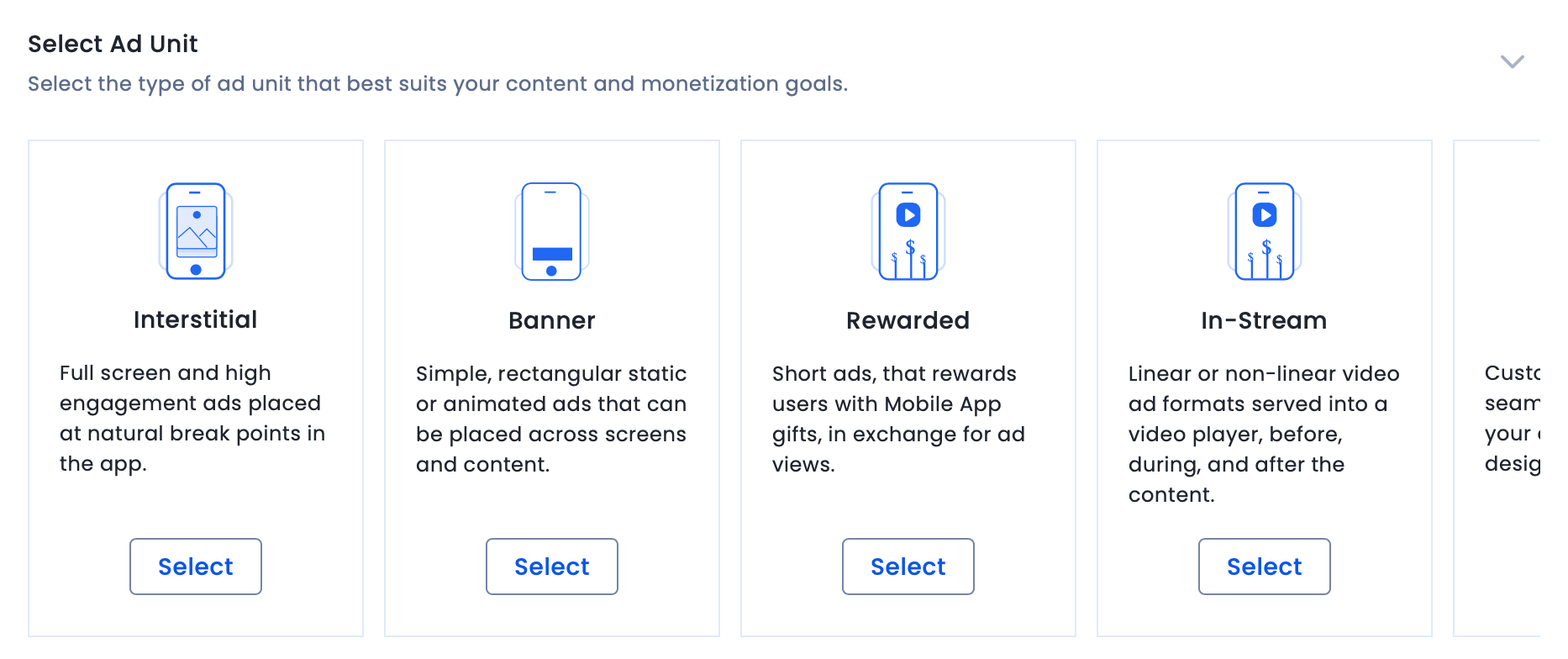
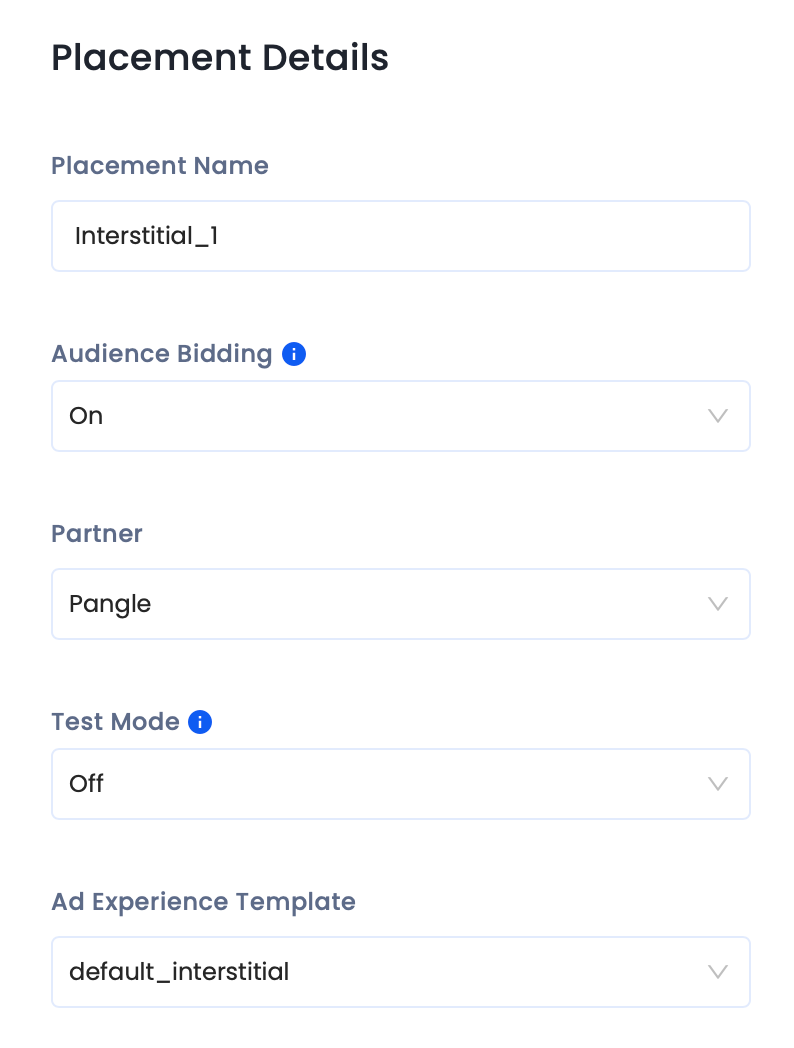
Before you add InMobi to the Pangle dashboard, ensure you have the following:

For further assistance, Contact Us.
By installing this SDK update, you agree that your Children Privacy Compliance setting remains accurate or that you will update that setting, whenever there is a change in your app's audience. You may update the app's Children Privacy Compliance settings at https://publisher.inmobi.com/my-inventory/app-and-placements.
 Support Center


