Introduction
This guide covers integrating InMobi as a real-time bidder on MAX, AppLovin’s in-app header bidding platform. InMobi uses the oRTB protocol and renders ads via its SDK for Banner, Interstitial, Video, and Native formats. Ideal for gaming publishers, this SDK-based integration supports in-app environments only.
Prerequisites
Ensure the following before you get started with this integration:
- An active InMobi account on the InMobi Publisher Platform to access inventory settings, reporting, and account configuration. For more information, see Create InMobi Account.
- An active MAX account.
- An integration with the MAX SDK and InMobi MAX adapter. Download for Android and iOS.
- Supports in-app inventory.
- Supports waterfall and bidding.
- Ad Formats Supported: Banner, Interstitial, Rewarded Video, and Native.
Configure InMobi Placements
To get your account and inventory up and running on the InMobi Publisher Platform, follow the instructions below:
- Create an InMobi Account or log in to the InMobi Publisher Platform.
- If you are adding apps and placements for the first time, see Add Your App or Website.
To create placements for MAX:
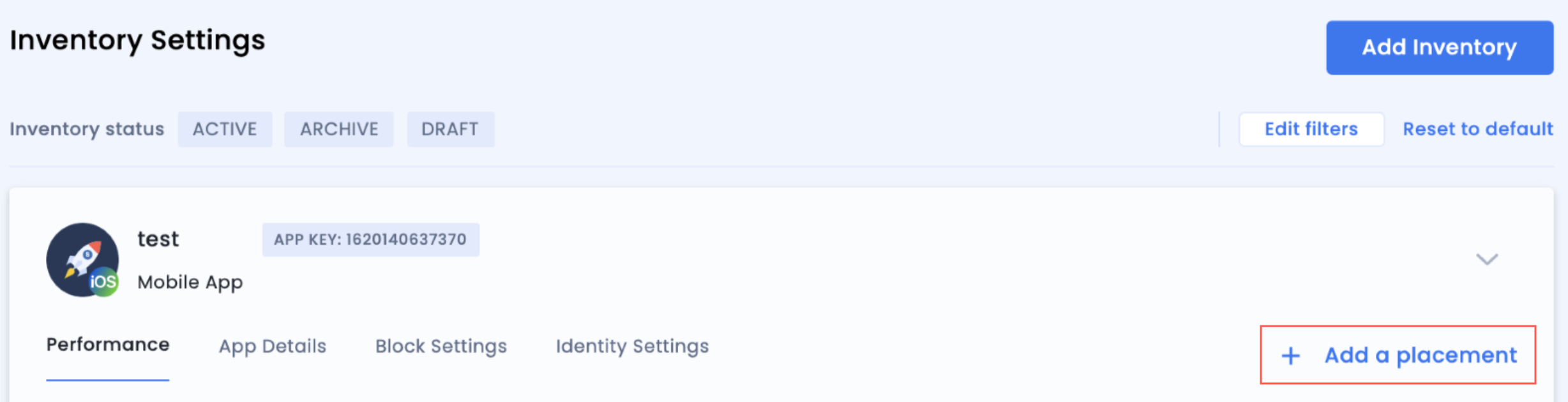
- Search for the app or website you would like to create a placement for and click + Add a placement.
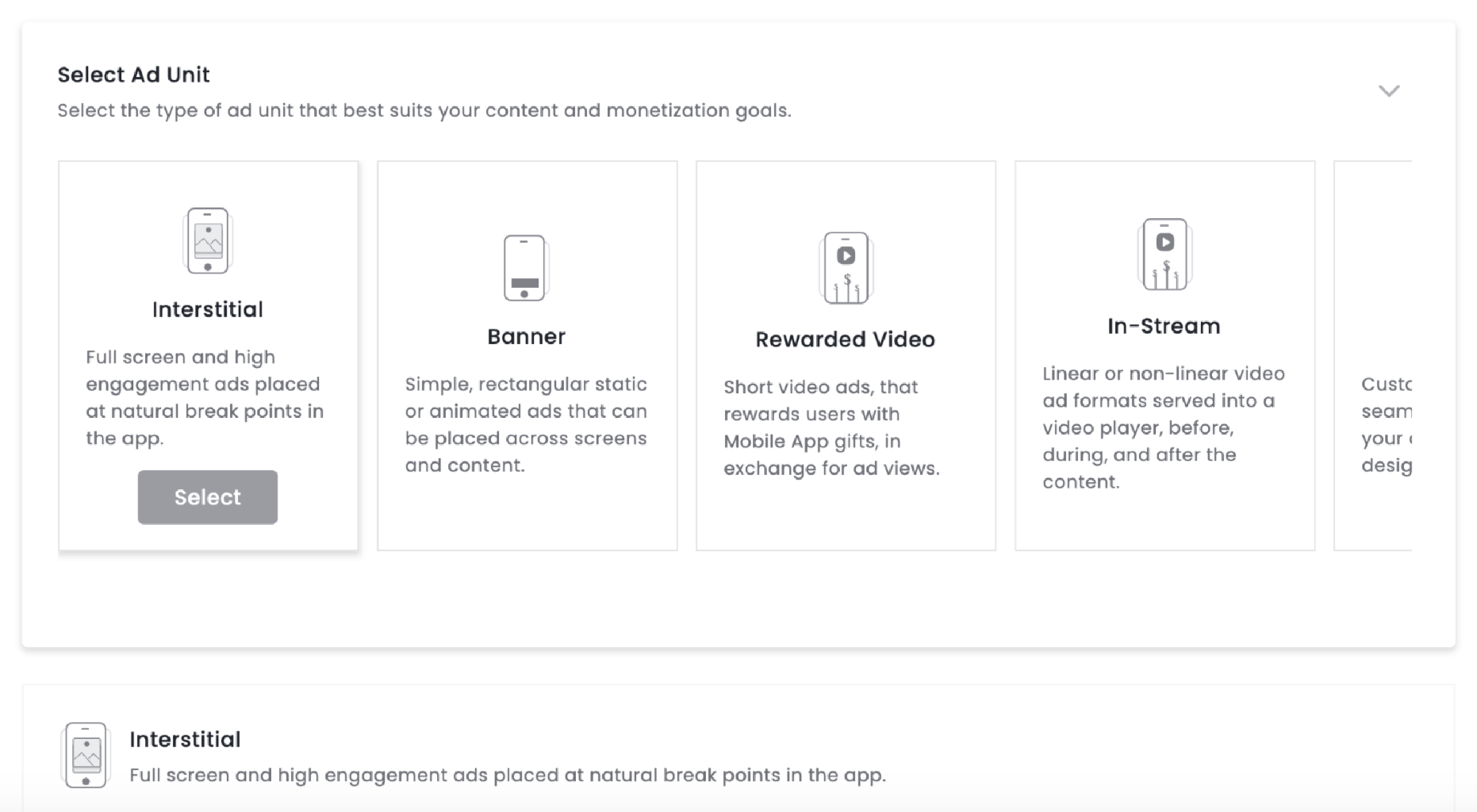
- Select an ad unit. For more information on our ad units, see Ad Units.
- Name your placement. Enable Audience Bidding and select AppLovin MAX from the Partner dropdown.
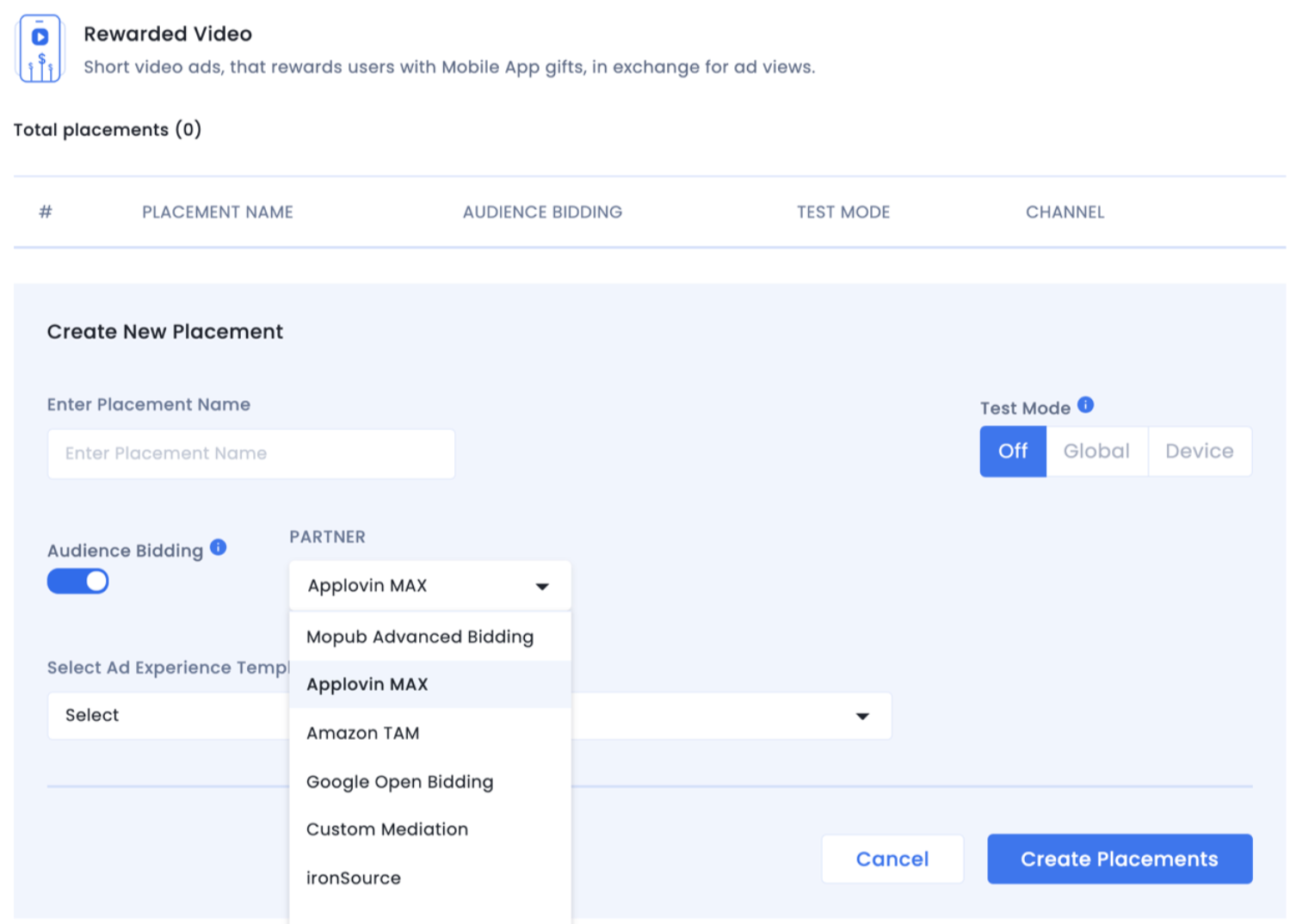
- Click Create Placements.
Add InMobi as a Bidder on MAX
- On the MAX dashboard, go to MAX > Manage > Ad Units and select the ad unit where you want to enable InMobi.
- Enter the InMobi Account ID and Placement ID.
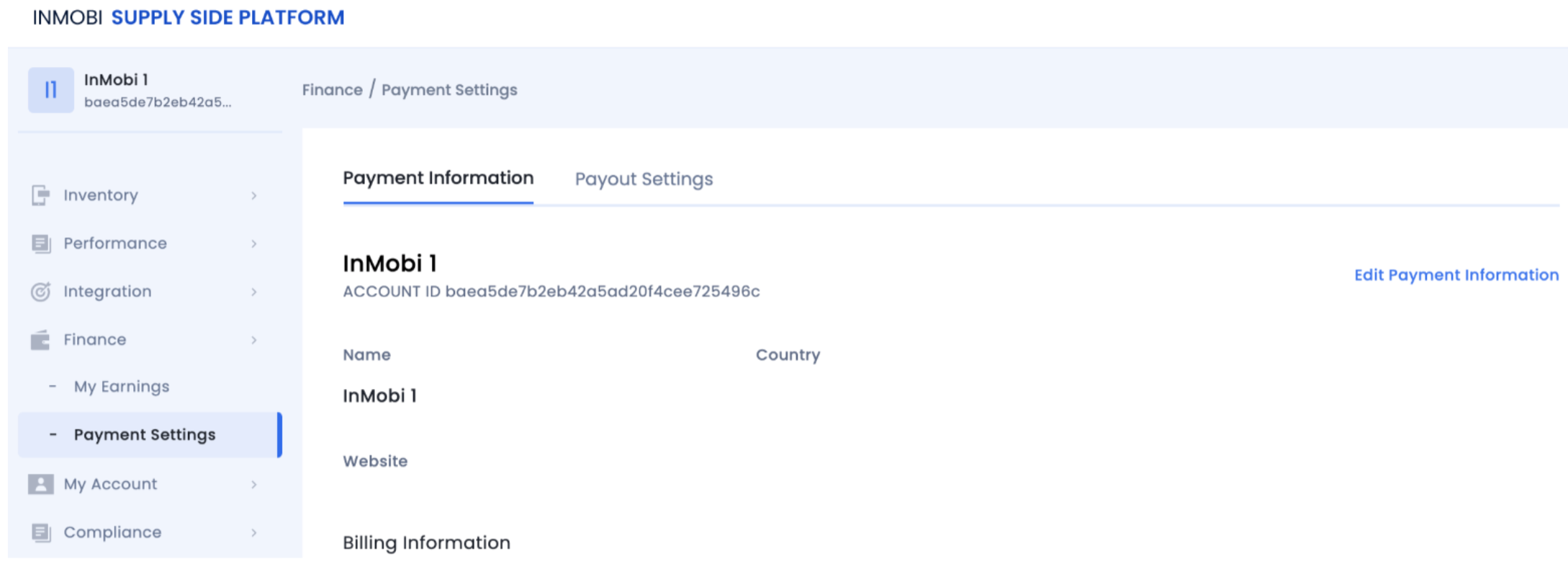
- Find your InMobi account ID on the InMobi Publisher Platform under Finance > Payment Settings > Payment Information.
- Find the InMobi Placement ID under the placement name.

For more details, see InMobi Integration Guide on MAX's documentation.
Integration Checklist for Native
- Integrate the MAX SDK and the MAX-InMobi adapter. Native support for InMobi requires SDK version 10.1.0.1 (iOS) and 10.0.9.3 (Android).
- Use the main image in your native ad to enable impression tracking. Impressions won't register without it.
- We support a default image aspect ratio of 256:165 (~3:2). Let us know if you support other ratios.
- Native ad templates supported on MAX include small, medium, and manual:
- Small/medium are predefined templates.
- Manual allows full customization to match your feed.
For more information, see the following links:
iOS: Integration Guide | Enabling Manual Native Ads | Enabling Small/Medium Template
Android: Integration Guide | Enabling Manual Native Ads | Enabling Small/Medium Template
For further assistance, Contact Us.
 Support Center


