AI Search

CloudX

Introduction

CloudX is an in-app mediation platform that enables publishers to monetize their inventory through real-time bidding and SDK-based integrations. This guide explains how to integrate InMobi with CloudX for Android and iOS applications using the InMobi SDK.

This integration supports global in-app inventory and key ad formats, including Banner, Interstitial, Native(upcoming), and Rewarded ads.

Requirements

Before starting the integration, ensure you have the following:

  • An active account on the InMobi Publisher Platform. For more information, see Create InMobi Account.
  • Access to the CloudX dashboard.
  • Your app already added to the InMobi Publisher Platform dashboard. If you are adding app inventory for the first time, see Add Your App or Website.
  • Placements created for the required ad formats. If you are adding placements for the first time, see Create Placements and Ad Units.
  • Supported Ad Formats
    • Banner
    • Interstitial
    • Rewarded
    • Native (in progress)

Configure InMobi Dashboard

  1. Log in to the InMobi Publisher Dashboard.
  2. Search the app you would like to create a placement for and click + Add a placement.

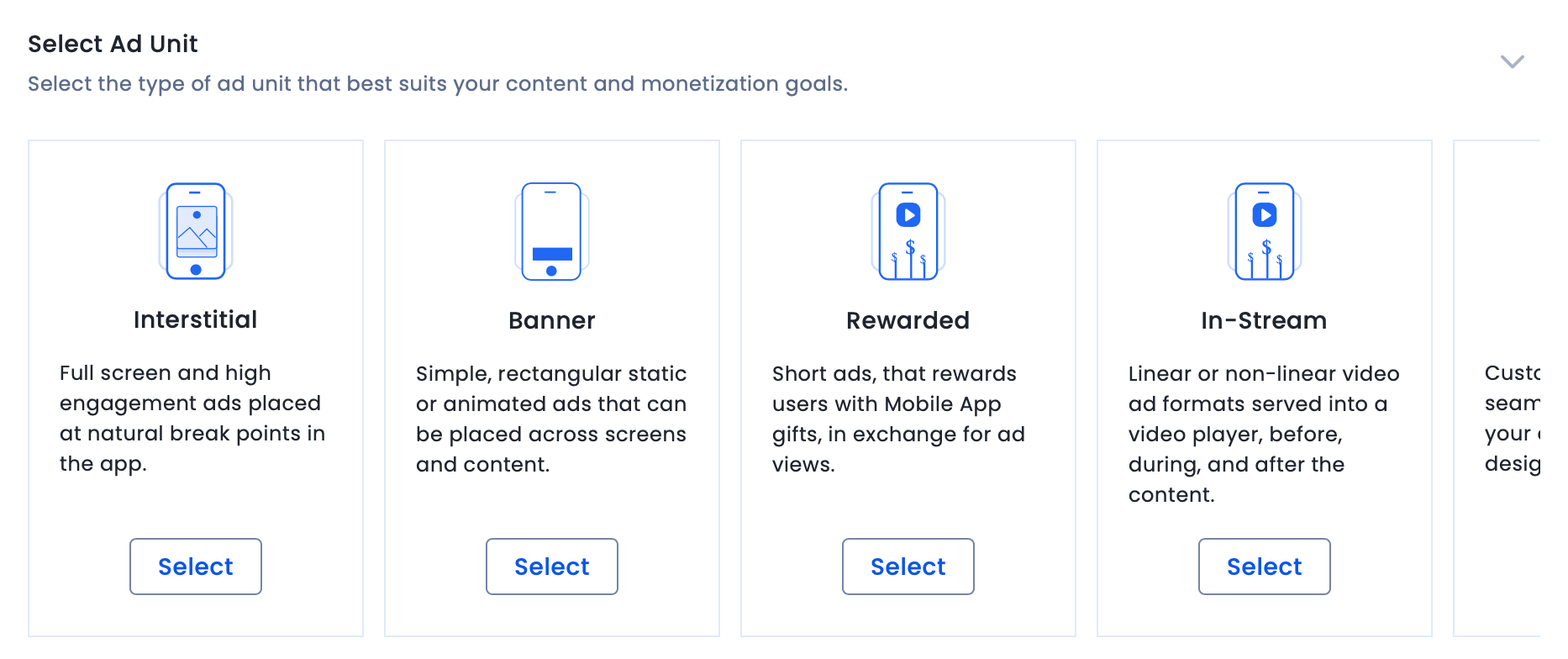
  3. Select the ad unit type for which you want to create a placement.

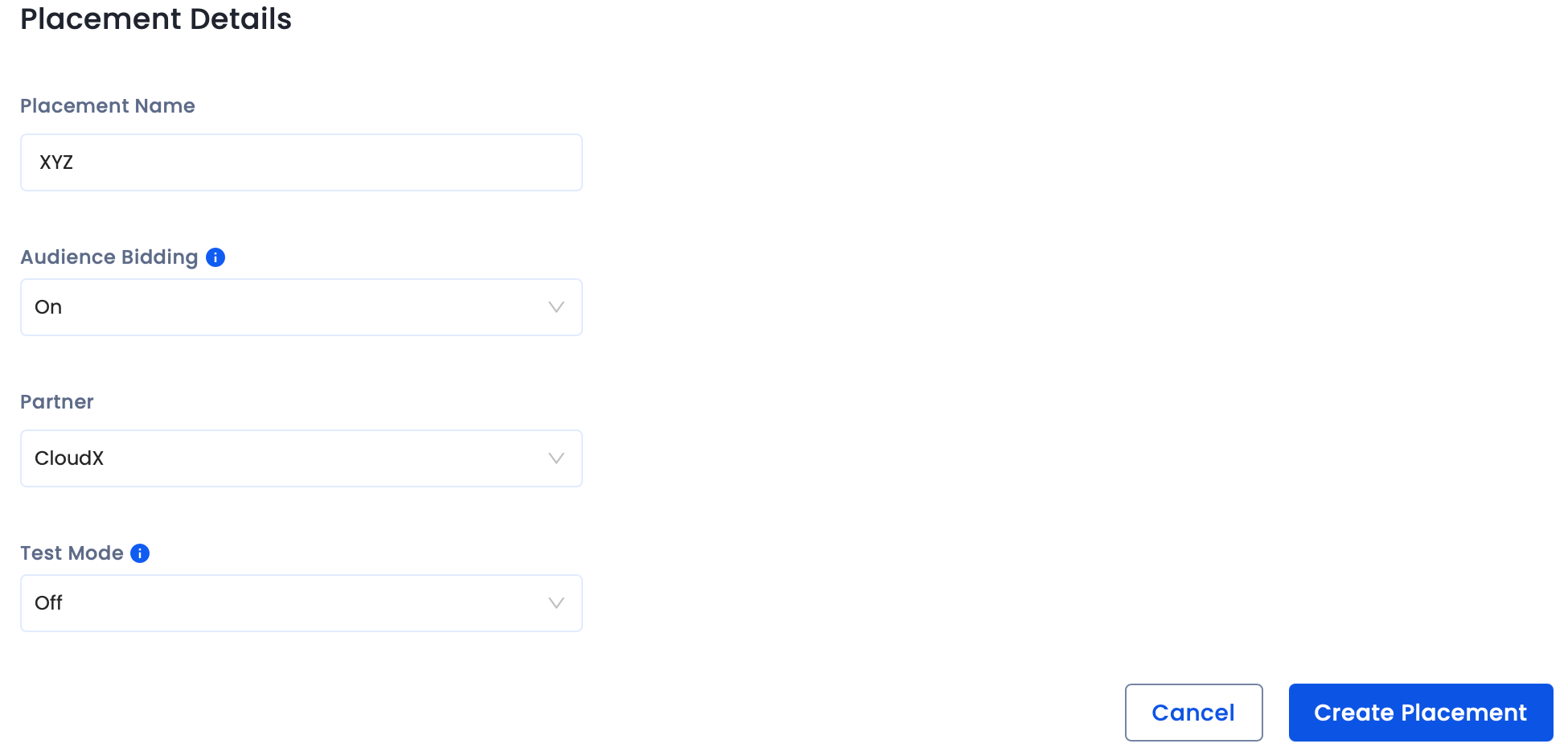
  4. Add Placement Details. Switch on Audience Bidding and select CloudX from the Partner dropdown.  

  5. Click Create Placement.

Integrate with CloudX

Before you add InMobi to the CloudX dashboard, ensure you have the following:
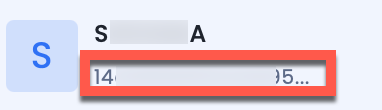
  • InMobi Account ID: You can find it in the top left corner under your Account's name. 

  • Placement ID: The InMobi Placement ID is present under the placement name. 

  • Integrate the CloudX SDK using the platform guides for Android and iOS, and meet the InMobi Adapter requirements for iOS.
  • Follow the steps in the InMobi Network guide to configure InMobi bidding in CloudX. 

For further assistance, Contact Us.

On This Page

Last Updated on: 01 Jun, 2026