This guide covers the steps and best practices for configuring and managing vendors for your properties within the InMobi CMP portal. When you use InMobi CMP on your property, you must specify the vendors (third parties) that may process user data, set their purposes, and manage consent preferences.
IAB vendors are those registered in the IAB Global Vendor List (GVL) and recognized by the IAB Transparency & Consent Framework (TCF). Using them allows you to use standardized consent strings (TCF/GPP) and simplifies compliance.

We consider consent, legitimate interest, and flexible purposes to classify vendors' legal basis types. Special purposes, features, and special features are not considered to classify vendors based on legal basis.
Non-IAB vendors are vendors who have not registered with IAB Europe and are not part of the IAB Vendor List TCF 2.2. Since they are not listed in the IAB Global Vendor List, it is not possible to create a signal to transmit to non-IAB vendors. They only enable publishers to show the vendor to the consumer and obtain a consumer's privacy preferences for that vendor, not the ability to transmit them in a standard way.

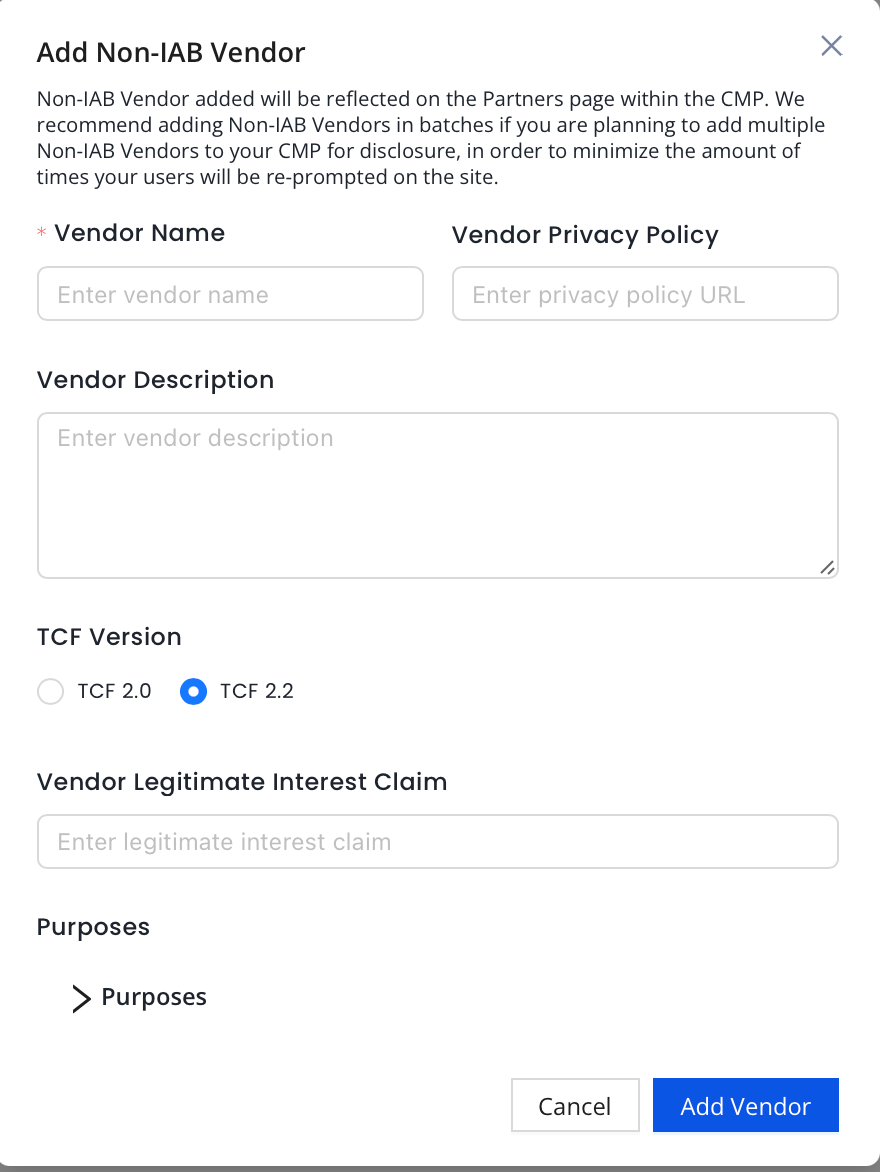
Your newly created vendor will be added to your non-IAB vendors list in the portal and will appear in the CMP in the partner screen.
On the InMobi CMP portal, the vendor will be given a non-IAB vendor ID, which will correlate to their position in the non-IAB vendor cookie and the non-IAB vendor API. You will now need to manage these vendor technologies using the non-IAB APIs and/or cookie instructions.
You have completed all the configuration options for the InMobi CMP and can apply the Universal tag to the site.
You need to use the nonIABVendorConsent API to gather user consent. Each vendor you specified is assigned an id and stored in the consent.nonIabVendorConsents object. Check each entry as needed for consent (true/false). Here is an example using a fictitious vendor "Non-IAB Company" with id 1, which requires consent for purposes 1 and 3 to operate.
__tcfapi('getNonIABVendorConsents', 2, function(consent, success) {
    // check consent for non-IAB vendor with id 1. Always check
    // whether the callback returned success and GDPR applies
    if (   success
        && consent.gdprApplies
        && consent.nonIabVendorConsents[1]
       ) {
        // Use getTCData to validate consent is given for the
        // purposes declared in the configuration step
        __tcfapi('getTCData', 2, function(tcdata, success) {
          if (   success
              && consent.gdprApplies) {
              if (   tcdata.purpose.consents[1]
                  && tcdata.purpose.consents[3]) {
                  nonIabCompanyTag(); // replace this with your own code
                  console.log("Debug: ", tcdata.purpose.consents[1],
                    tcdata.purpose.consents[3]);
              }
          }
        });
    }
});
You can make that call anywhere in your code where you need to check for consent for the non-IAB vendor you use on your page. You also need to manually configure your Google tag(s) on your site to behave based on the consent preference made and on the product the user is using.
For Non-IAB vendor API and all other APIs, see CMP2 & CCPA API Index.
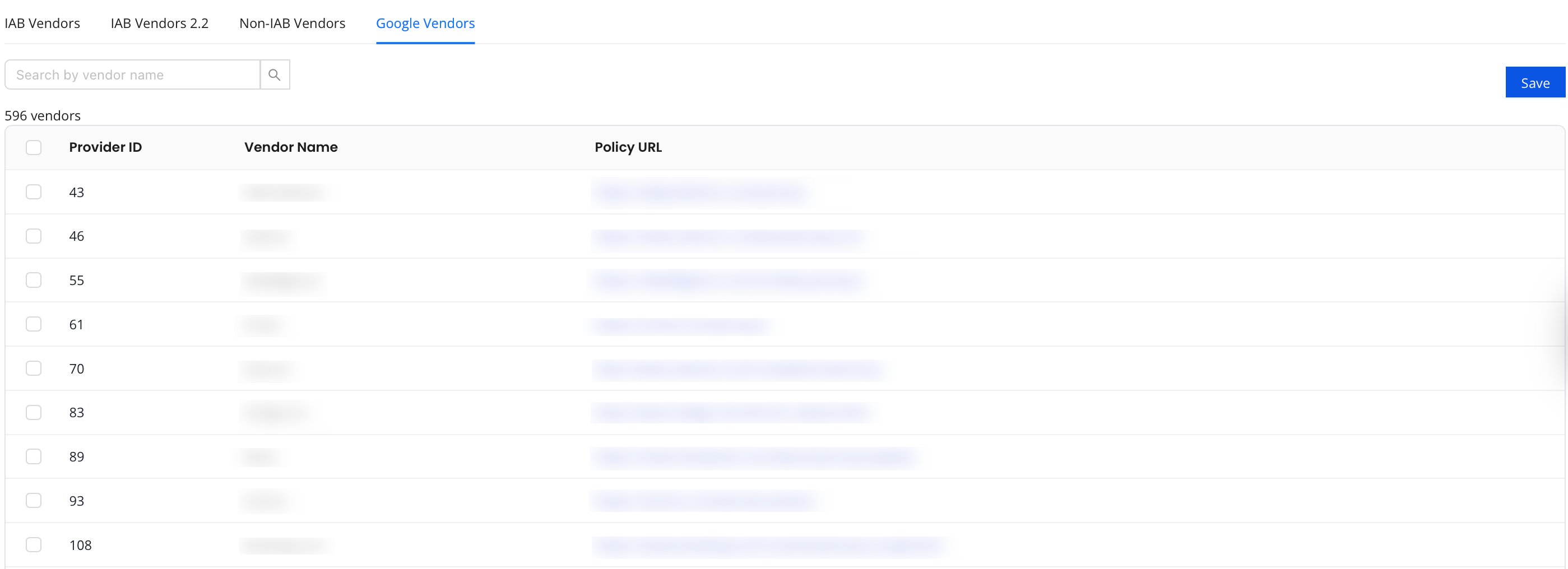
These are vendors that work with Google and are not listed under the TCF vendor list. If you work with Google Ad Manager, you may want to review this list and enable the vendors that you are working with through Google Ad Manager, AdMob, and AdSense. By default, all vendors are selected. For more information, see Ad Technology Providers.
By installing this SDK update, you agree that your Children Privacy Compliance setting remains accurate or that you will update that setting, whenever there is a change in your app's audience. You may update the app's Children Privacy Compliance settings at https://publisher.inmobi.com/my-inventory/app-and-placements.
 Support Center


