InMobi CMP offers a subscription for its premium features, or you can get those premium features for free by integrating with InMobi SSP. For more information, see InMobi CMP Premium.
Note
We’ve extended the free trial by an additional 2 months due to requests from publishers. During this period, Premium features will remain free, so you don't need to immediately complete billing setup or subscription activation. We understand this may affect how you manage property access and ownership, and we appreciate your patience while we improve these features.
- Once you log in, under My Properties, you can see all your premium properties with their subscription statuses, integration, and plans.
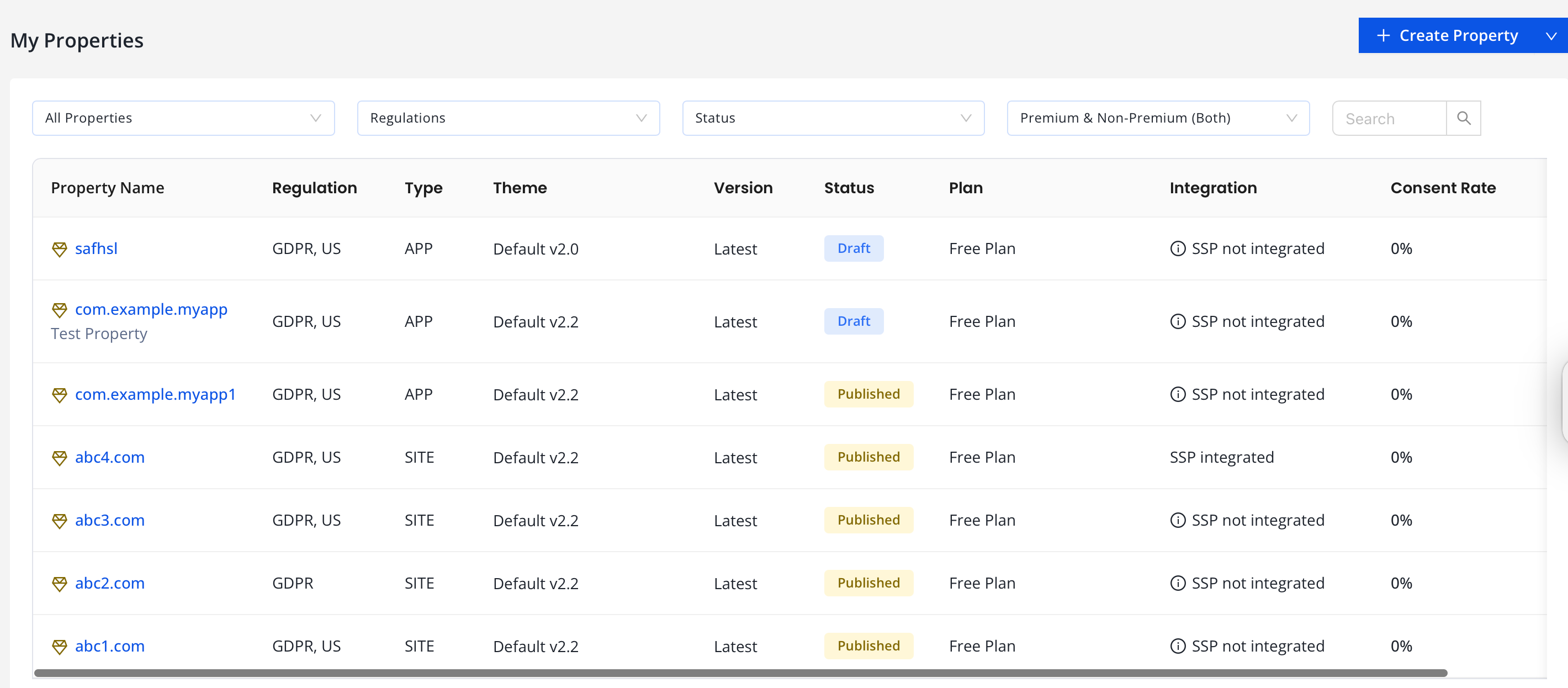
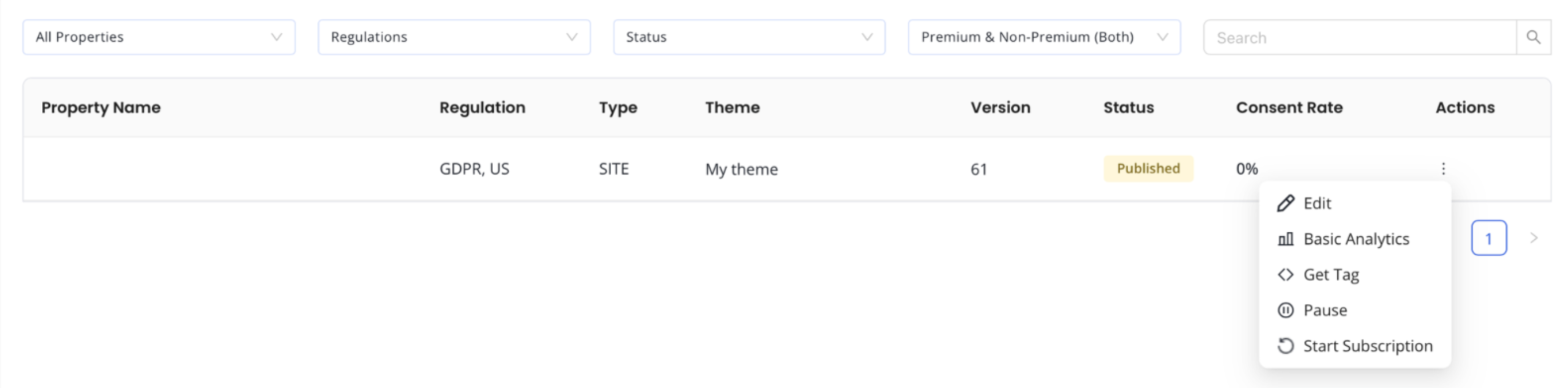
- To subscribe to InMobi CMP, create your property or select a property and click Start Subscription.
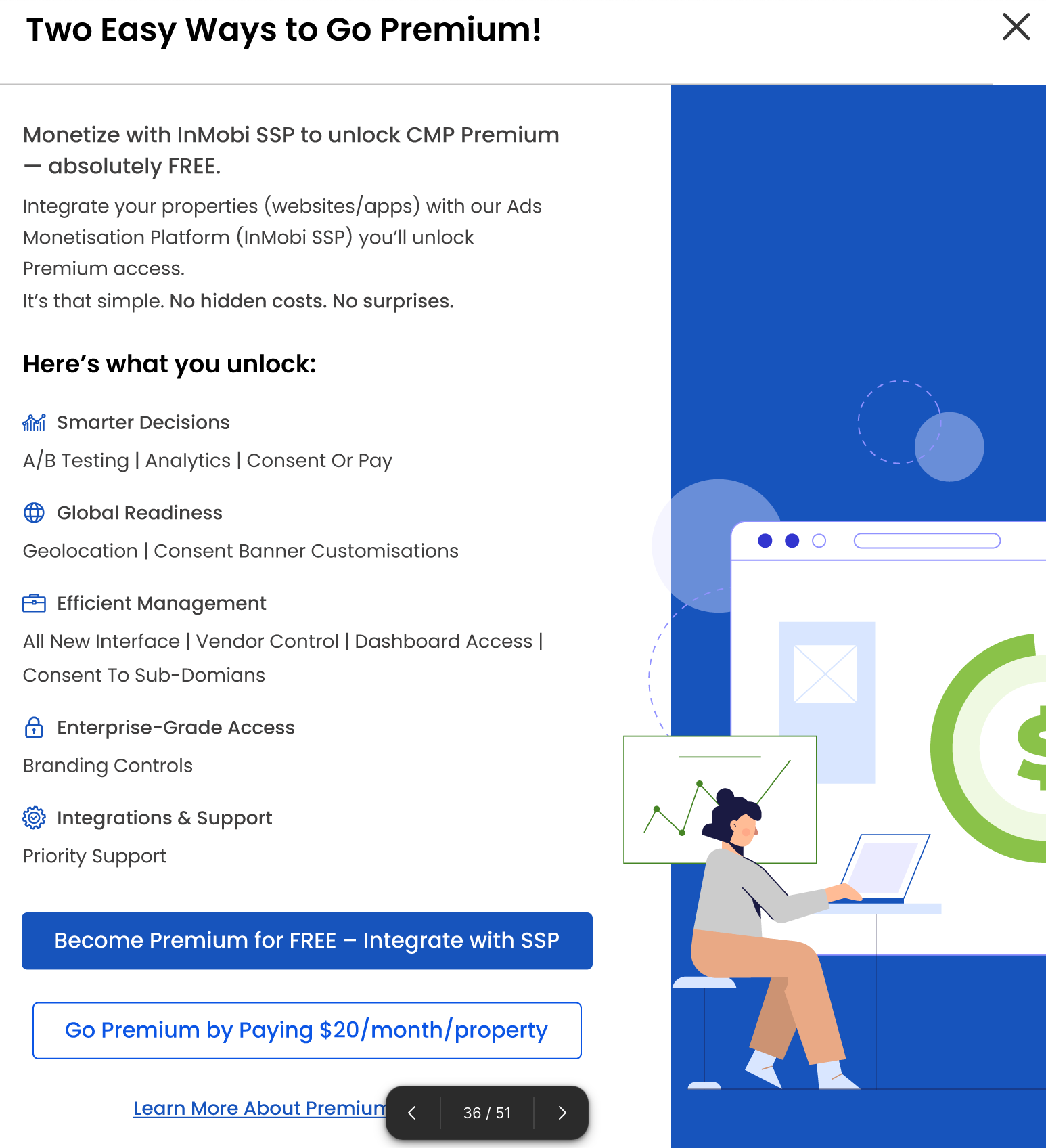
- There are two ways to go Premium. You can get premium access for free by integrating with InMobi SSP or pay $20 /property/month.
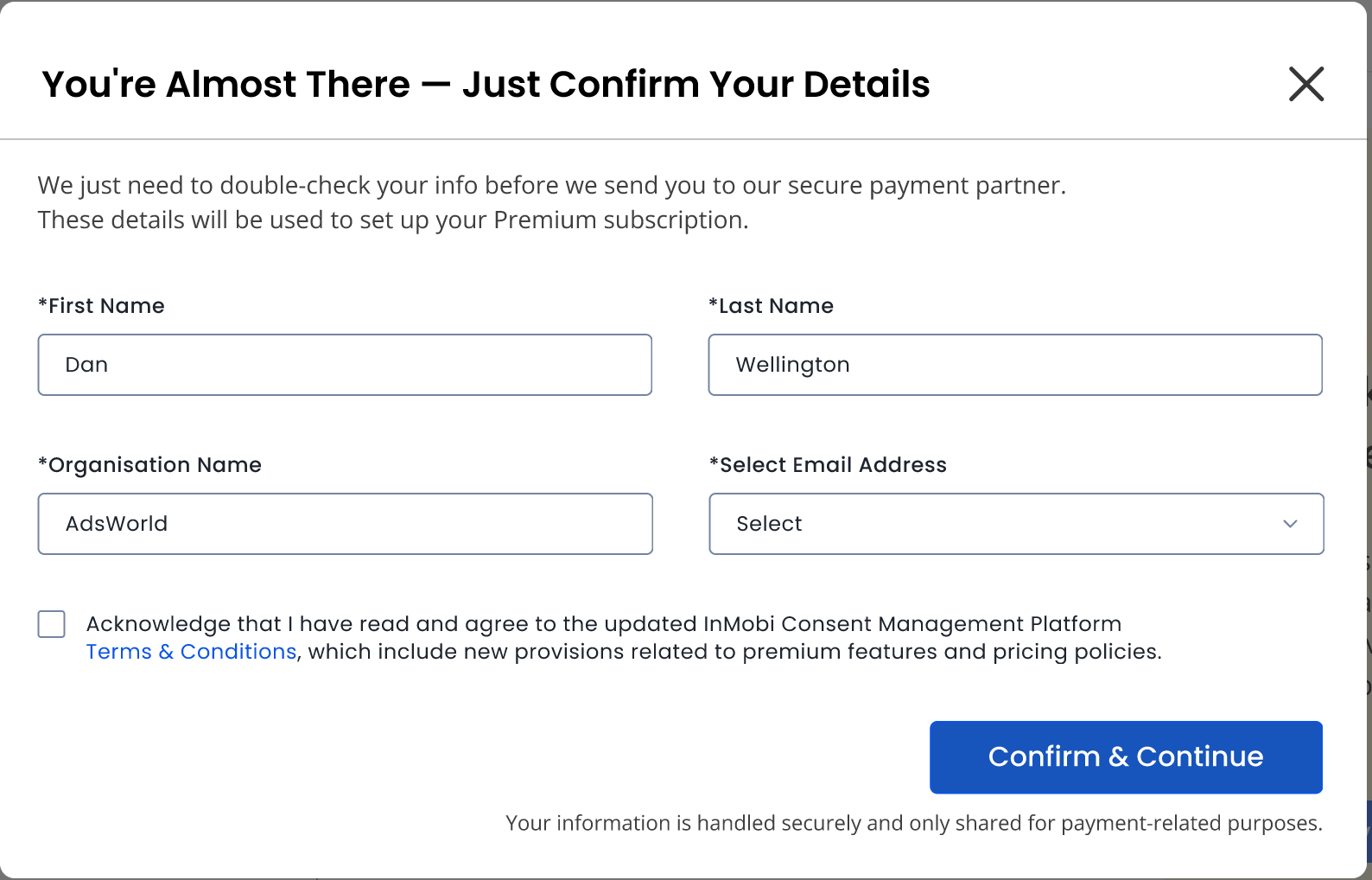
- Once you have made your selection, fill up some basic information and a consent form to confirm your subscription. Click Confirm & Continue. You will be redirected to the payment gateway page to complete the transaction.
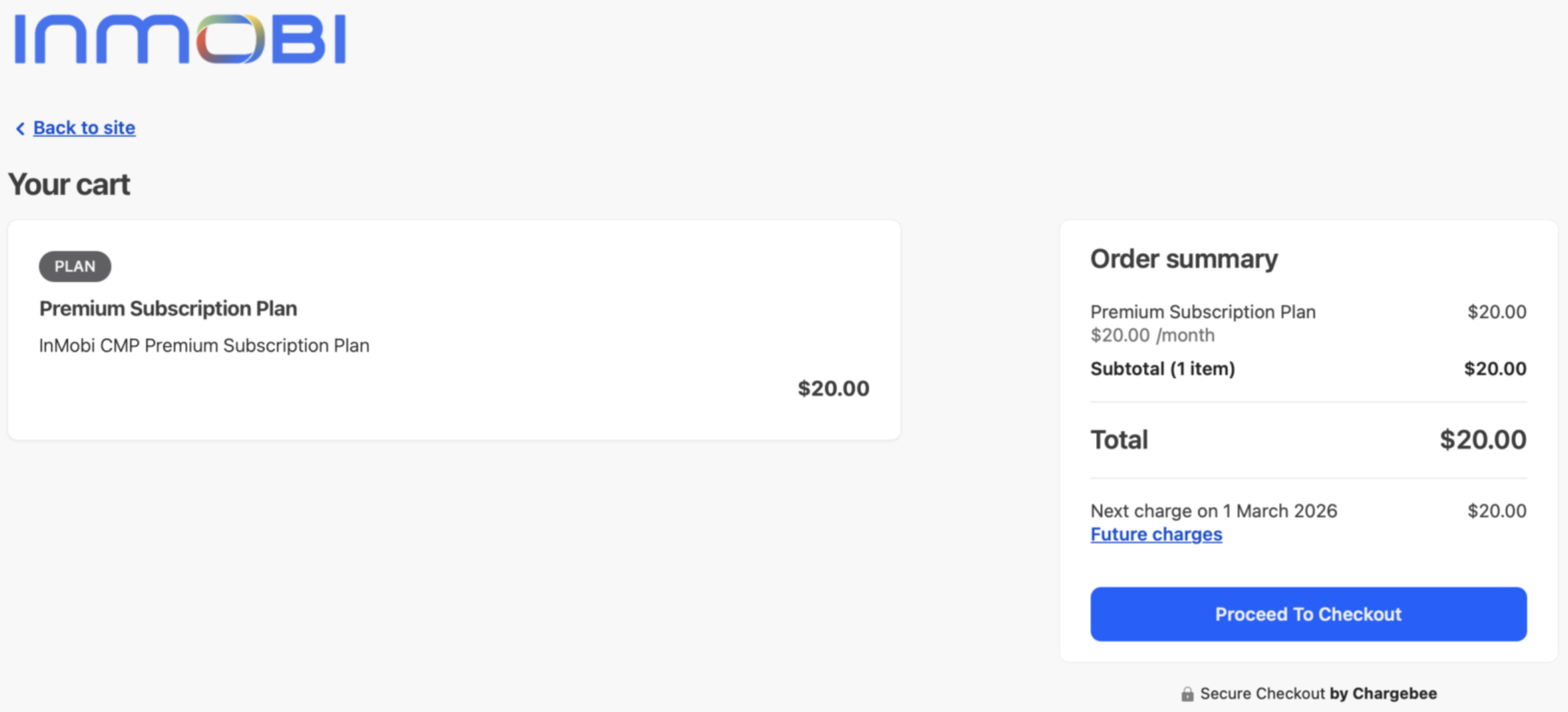
- Check your cart, future charges, GST (if applicable) and next billing date. Click Proceed to Checkout.
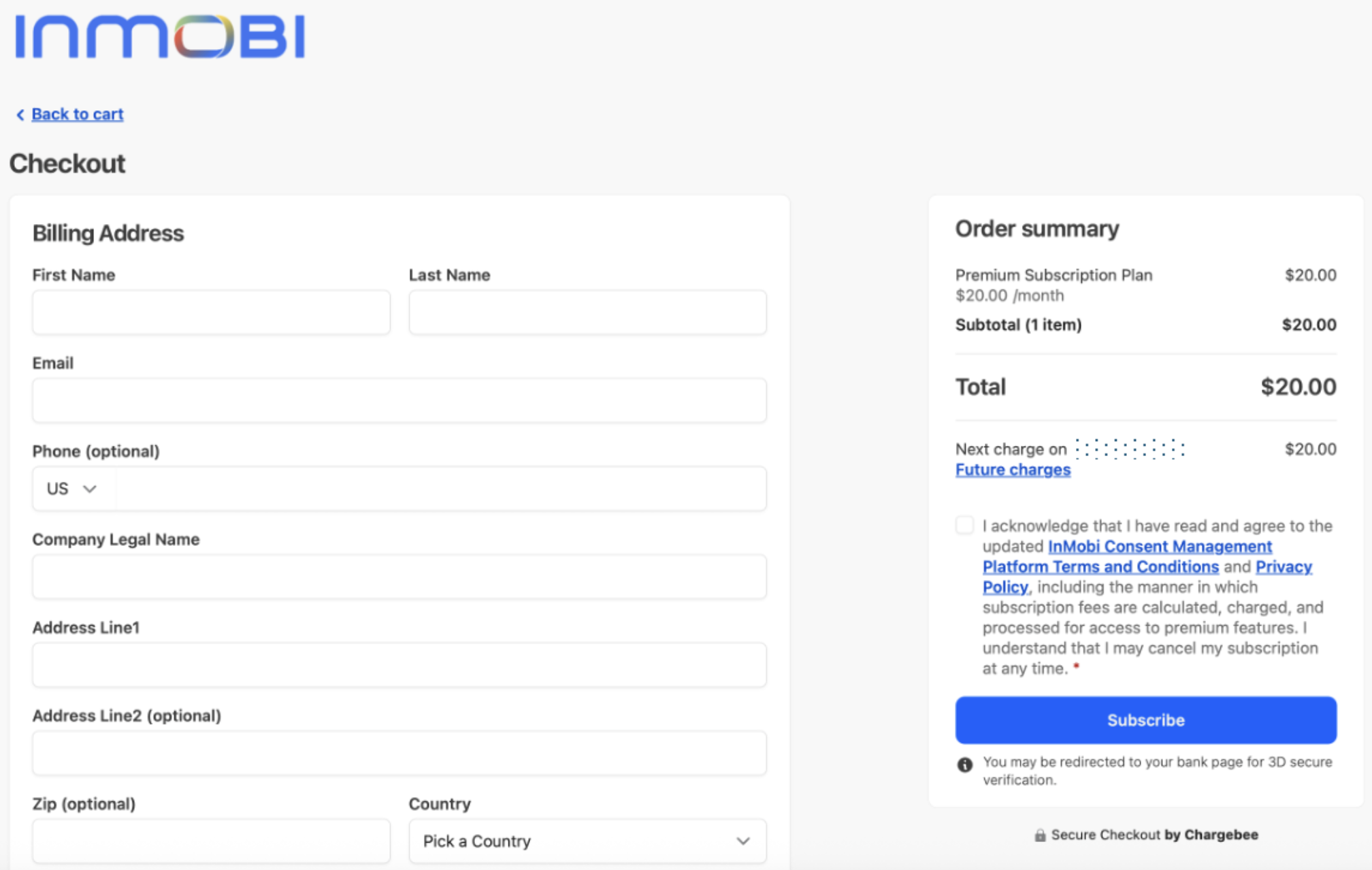
- Fill in the checkout form and enter your billing address and card details.
Note
- Billing address is used in generating an invoice for your transaction
- You may enter the same or a different shipping address.
- You may also enter a PO number, if applicable.
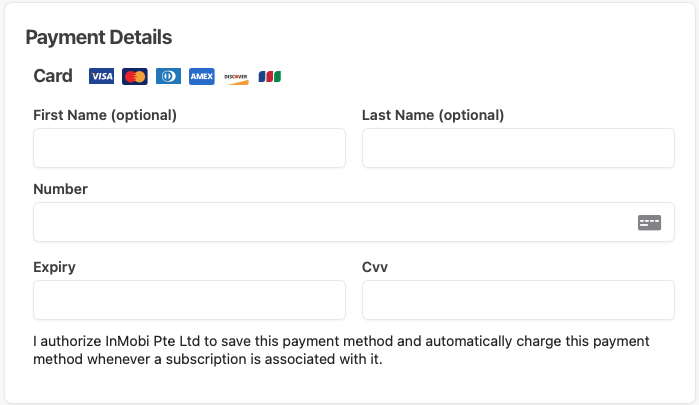
- Add payment details.
Note
- We only support credit card as a payment method.
- Your next payment will be auto-deducted from the same credit card.
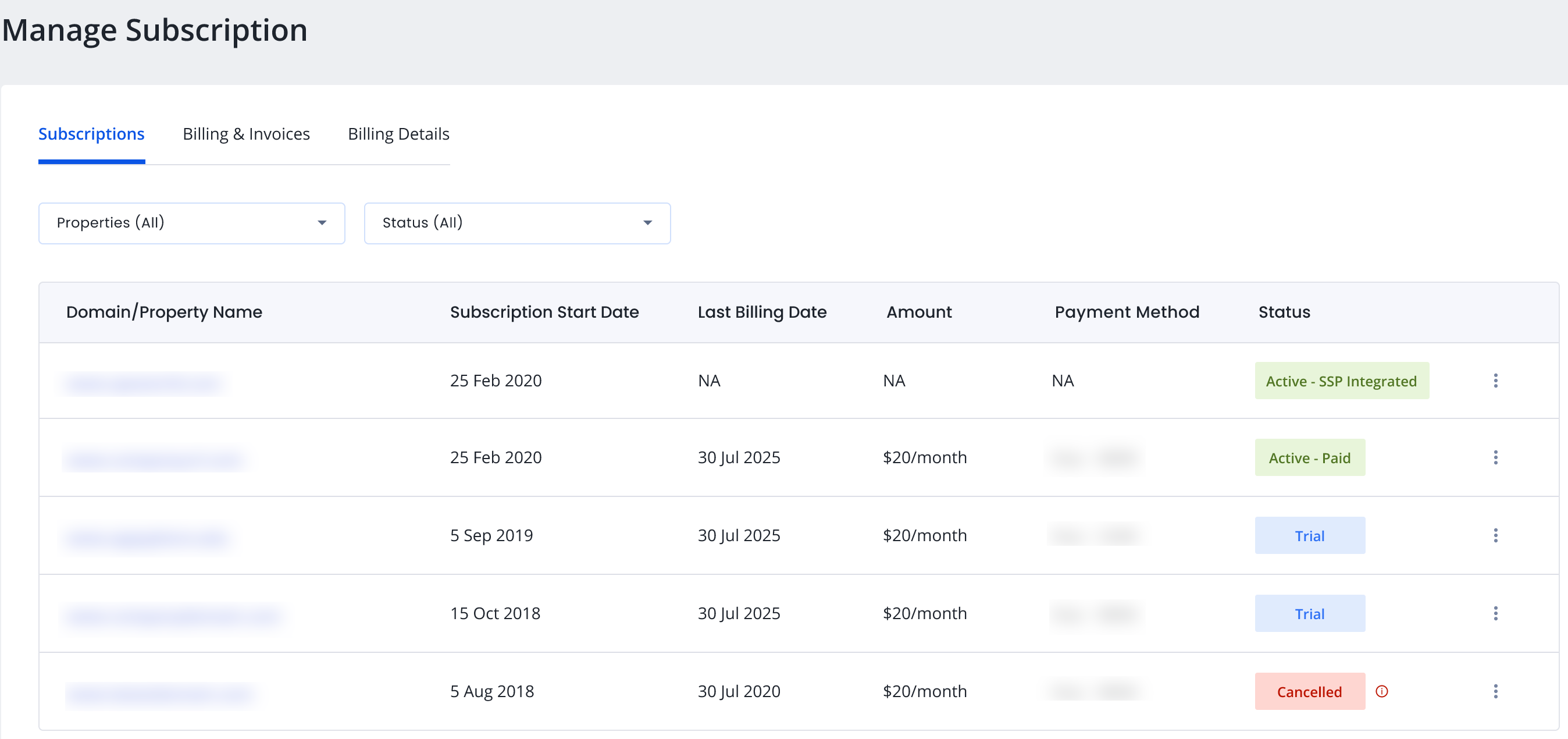
- Click Pay $20 and subscribe. You will be redirected to the Manage Subscriptions page. Under Subscriptions, you can view the property, subscriptions, and cancellations with reason.
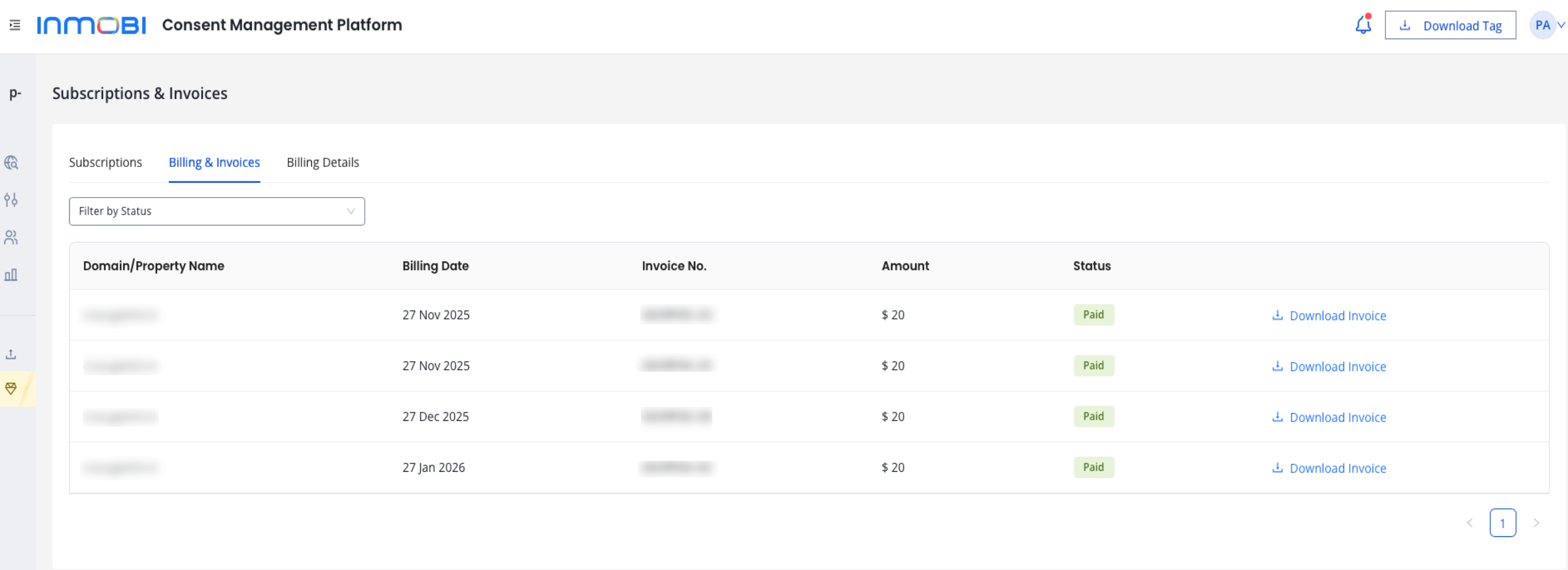
- Under Billing & Invoices, see the payment status, invoice date and number, and the amount paid. Click Download Invoice to save the e-invoice.
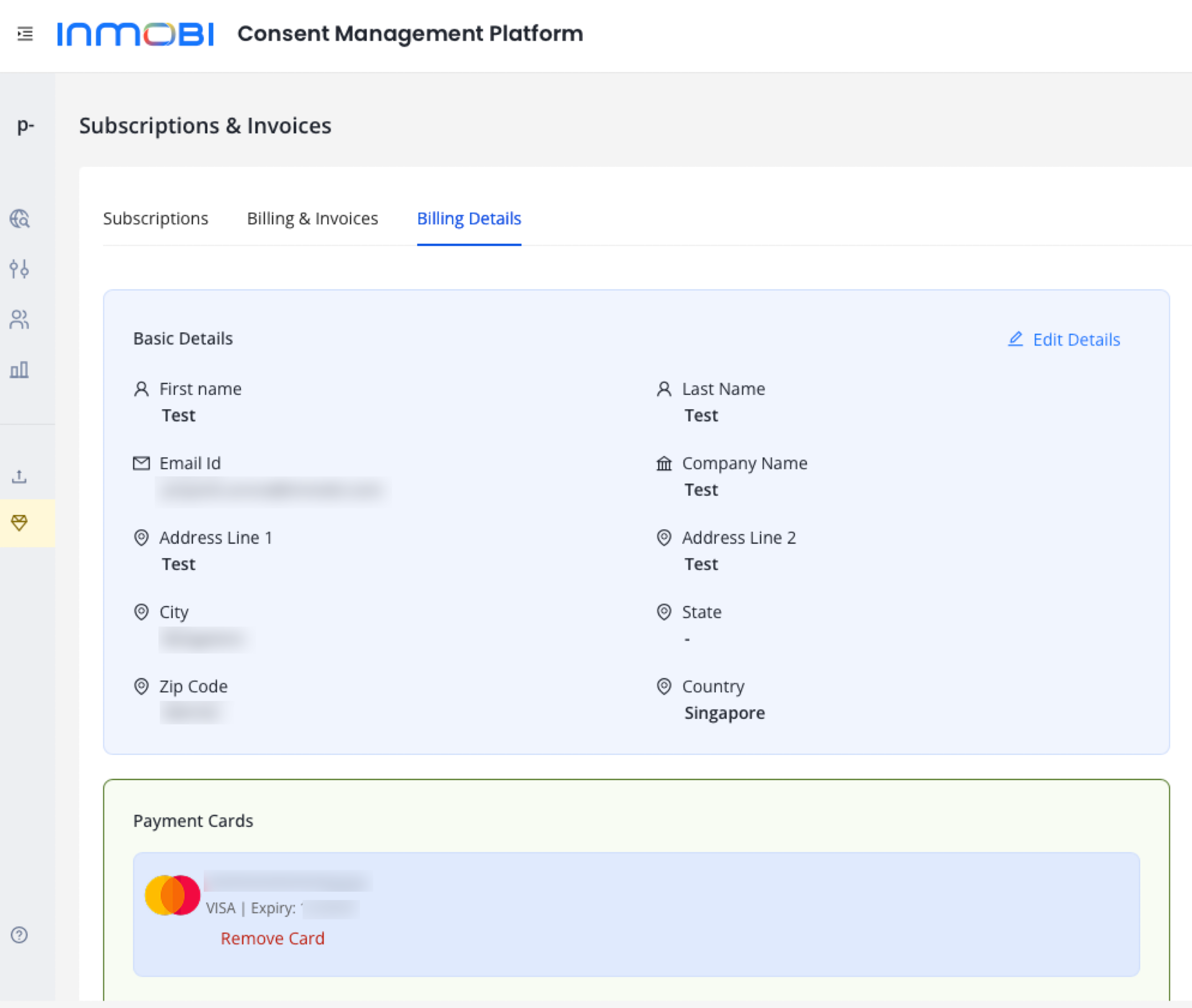
- Under Billing Details, find all the billing details after your account.

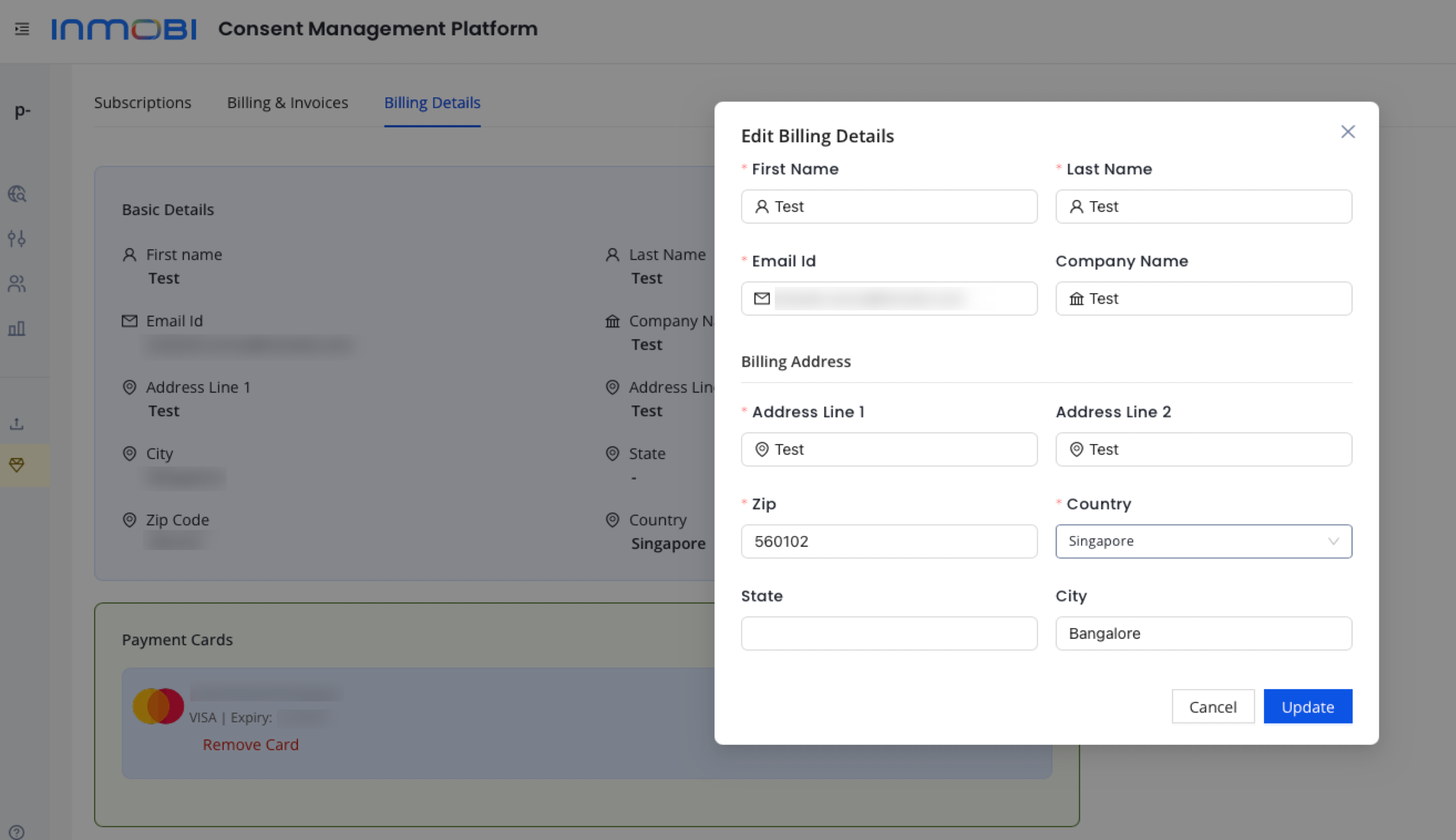
- To edit Billing details, click Edit Details. Click Update to save.
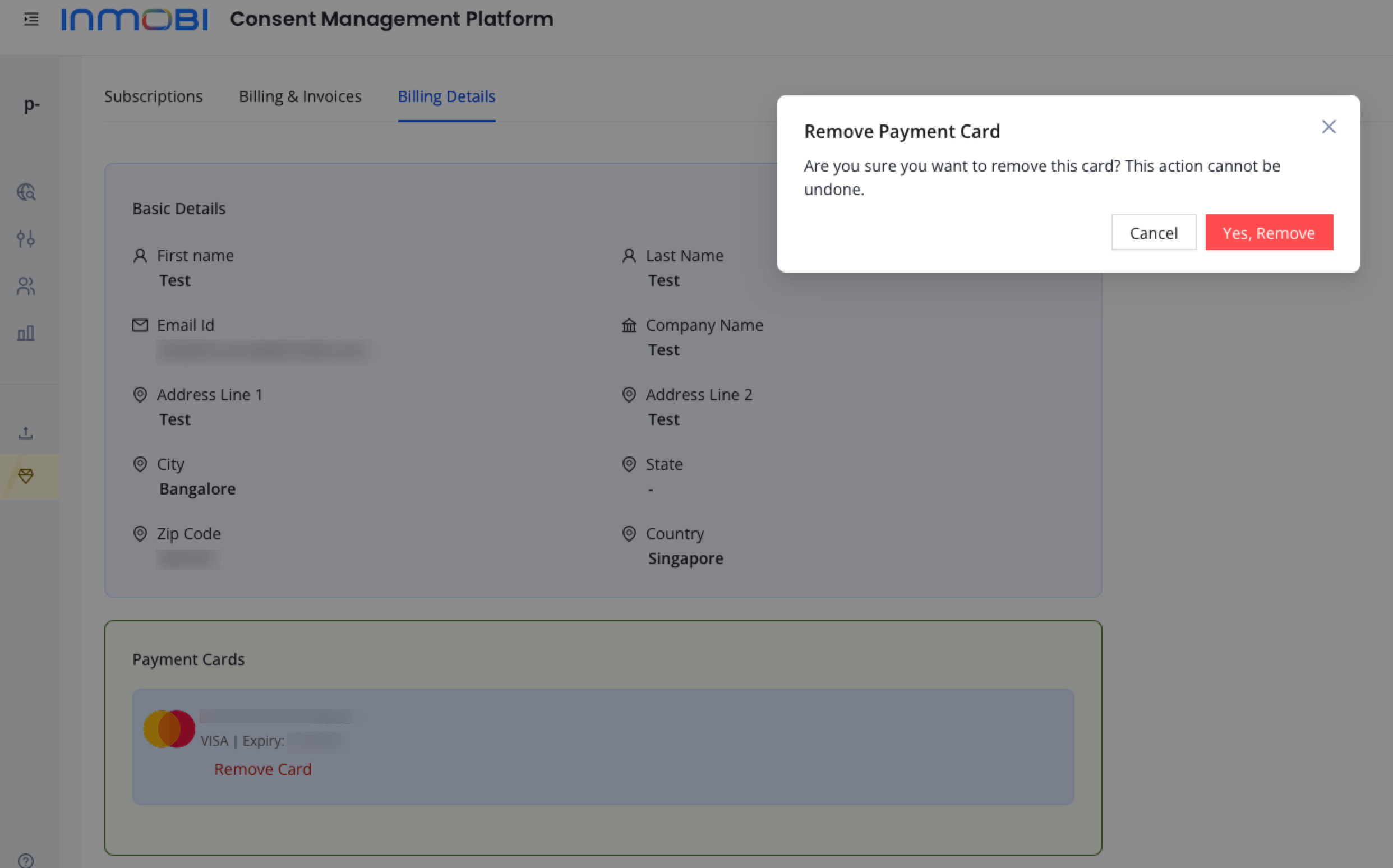
- To remove a card, select Remove card. Make changes and click Yes, Remove to confirm.
Note
- In case you update your billing address, it will reflect in the next payment for all your active subscriptions.
- Ensure you update your billing address before proceeding to the checkout page.
- You can remove any payment method from the list of payment methods. Please ensure at least one payment method is added to avoid transaction failure.
 Support Center


