Navigate to the Bulk Update tab to start filtering and updating properties.
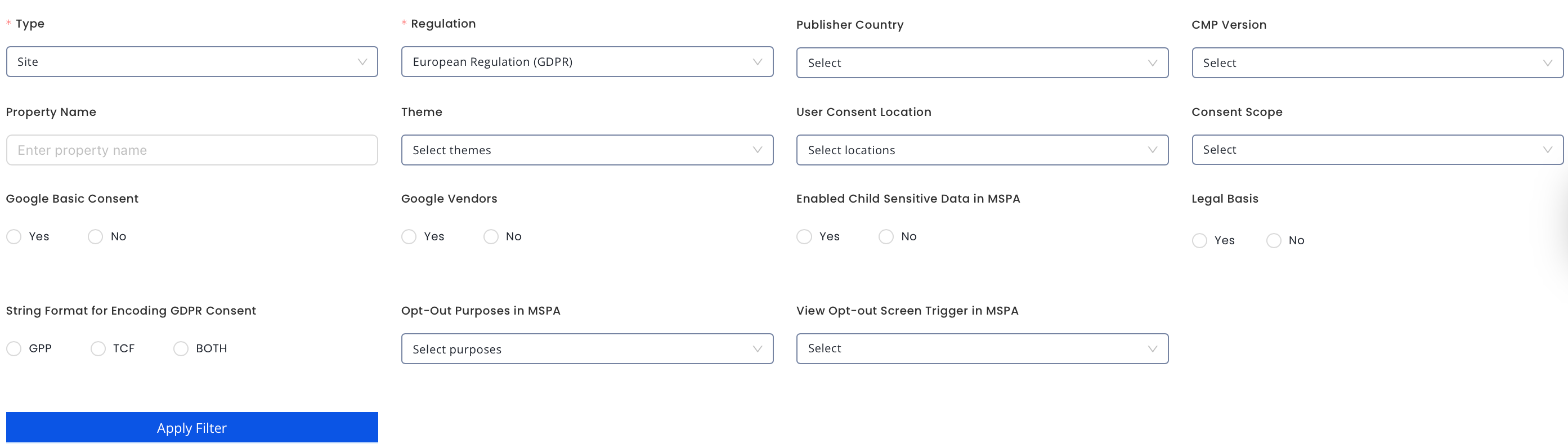
Enter the following information. All starred items are required.
Property Type: Select property type between Site, Site & subdomains, and Site AMP.
Regulation: Select GDPR, MSPA/GPP, or Both.
Publisher Country: Search by publisher country.
CMP Version: Search by CMP version.
Property Name: Search by property.
Theme: Search by theme.
User consent location: Search by user consent location.
Consent scope: Search by consent scope. Choose between Your site only or A group of your sites only.
Google Basic Consent: Enable or disable Google Basic Consent. For more information, see the Introduction to the Google Basic Consent with InMobi CMP.
Google Vendors: Search properties with/without Google vendors
Enabled Child Sensitive Data in MSPA: Search properties that have enabled or disabled child sensitive data processing under MSPA.
Legal basis: Search by properties with and/or without a legal basis
String Format for Encoding GDPR Consent: Filter based on string format.
Opt-Out Purposes in MSPA: Search property by the opt-out purposes.
View Opt-out Screen Trigger in MSPA: Search property based on how the consent screen will be triggered.
Click Apply Filter.
Select Bulk Updates
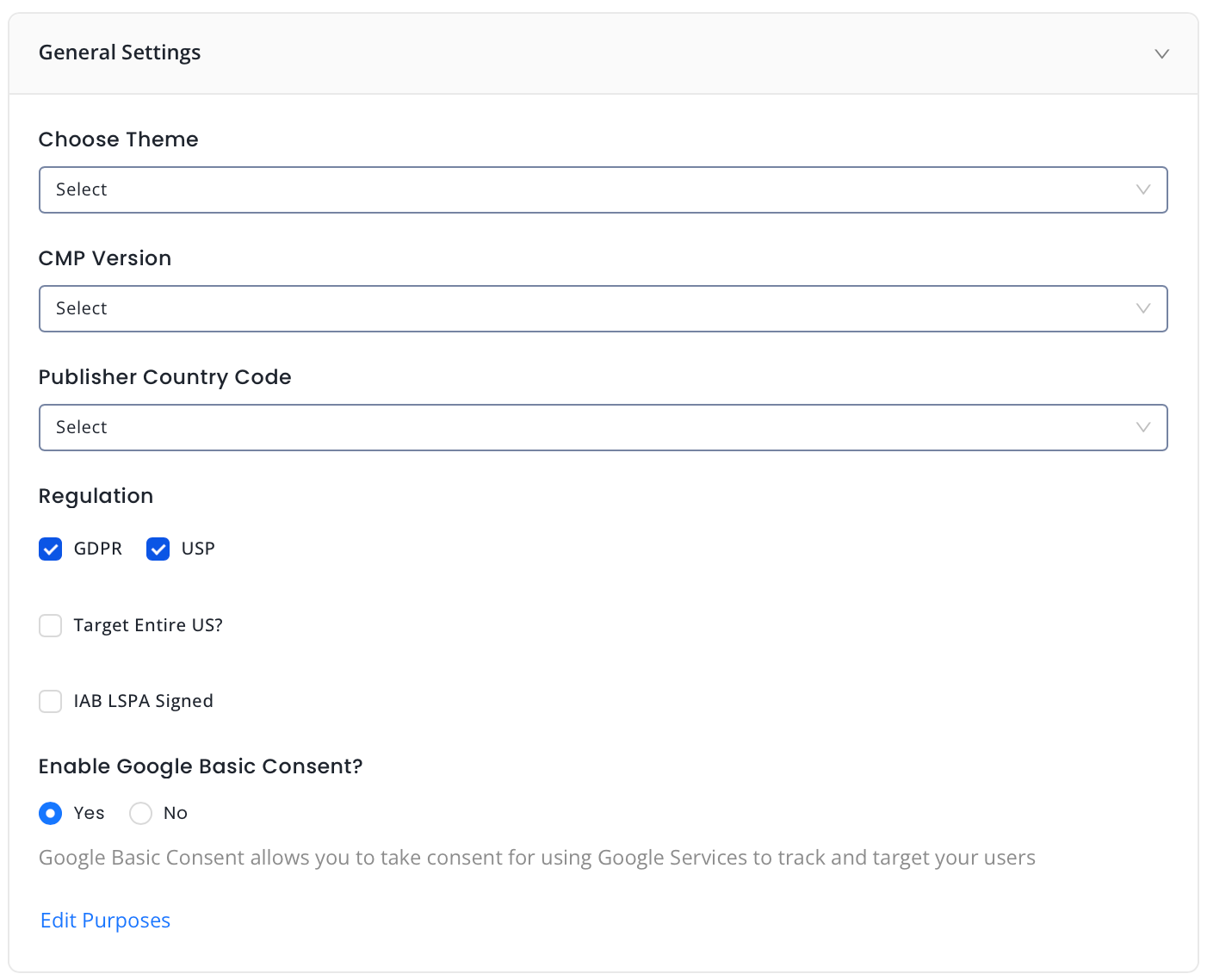
General Settings
Choose which theme you wish to apply to your properties.
Select the CMP version.
Select the Publisher Country Code.
Choose which regulation you want to apply: GDPR, US Privacy, or Both.
Select the checkbox if you wish to Target entire US.
Select the checkbox if you have signed the IAB LSPA.
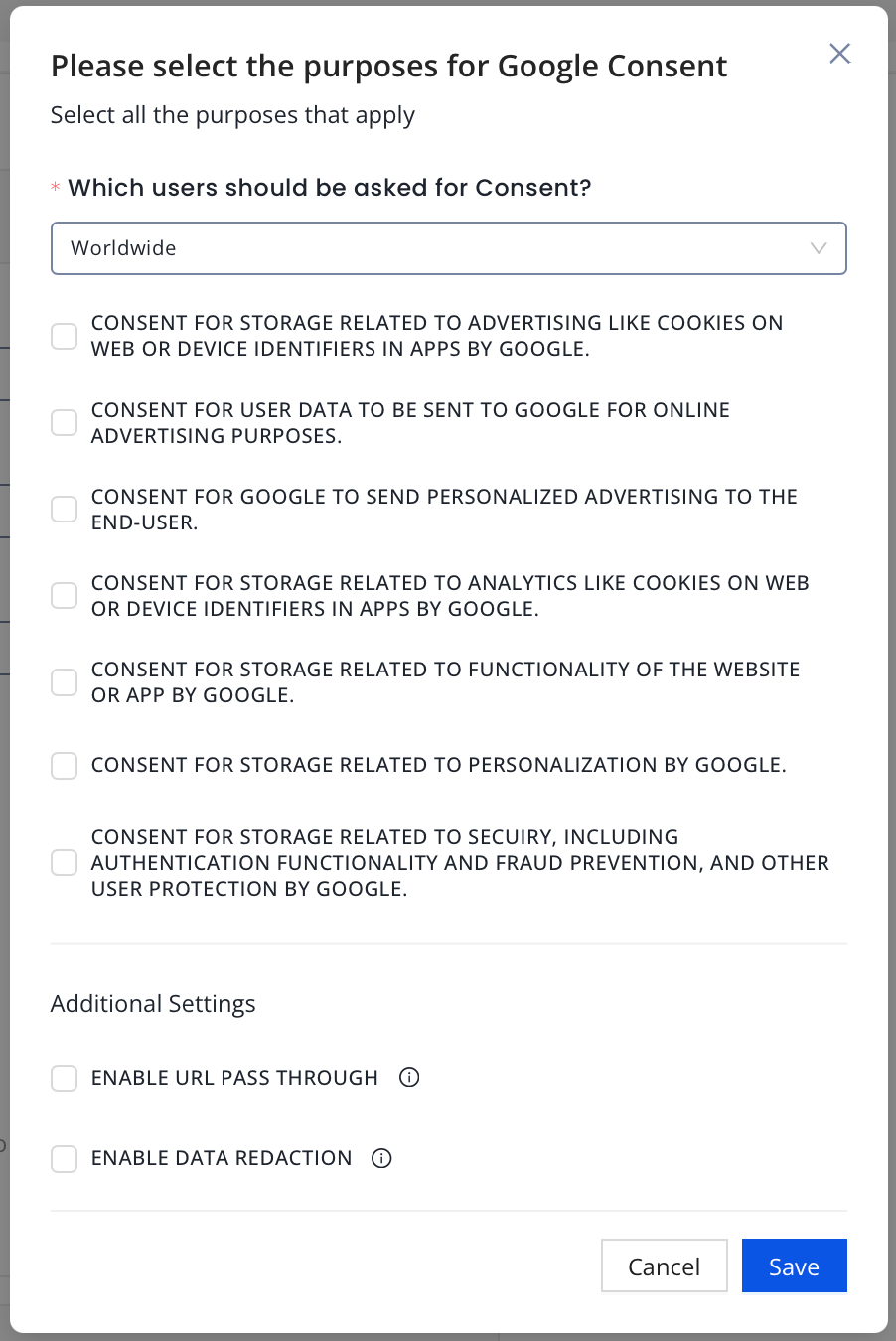
Select Yes or No if you wish to enable or disable Google Basic Consent. If Yes, select which Purposes will apply for Google Basic Consent.
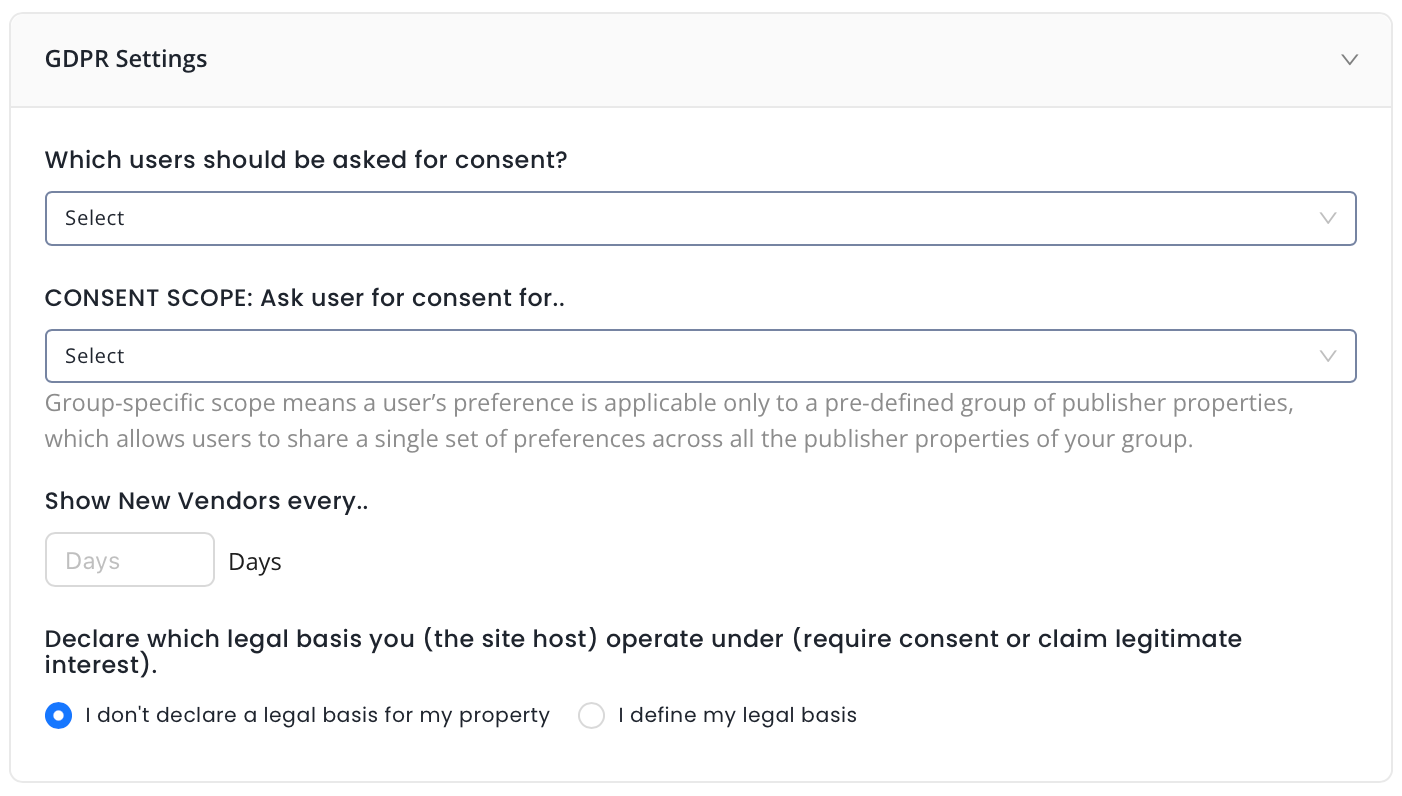
GDPR Settings
Select Which users should be asked for consent?.
Define Consent Scope: Ask users consent for. Choose between Your site only or A group of your sites only. If you select A group of your sites only, provide the Consent Scope URL and specify the Storage Mode.
Set the duration (in days) to show new vendors.
Declare the legal basis for your properties.
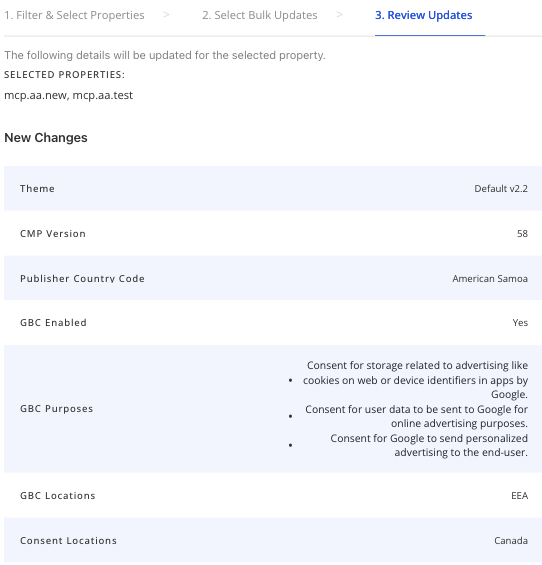
Review Updates
Once you've added your filters and configured your settings, you can view the selected properties and the new changes that you made to them.
You can also view the old settings at the bottom of the page.
Click Update Properties to finalize changes.
On This Page
Last Updated on: 14 Dec, 2025
✕
You are almost there...
By installing this SDK update, you agree that your Children Privacy Compliance setting remains accurate or that you will update that setting, whenever there is a change in your app's audience. You may update the app's Children Privacy Compliance settings at https://publisher.inmobi.com/my-inventory/app-and-placements.


 Support Center


